
You want GitHub Copilot CLI to work through a task while you do something else, and you would rather it did not run on your laptop with every tool approved. So you put it in a Docker container. The install works. The first copilot -p prints this and stops:
Error: No authentication information found.

Copilot can be authenticated with GitHub using an OAuth Token or a Fine-Grained Personal Access Token.
There is no browser in the container and no system keychain to keep a login in. And there is a less obvious problem: Copilot CLI reads GitHub tokens from its environment, so the GH_TOKEN you already pass to containers for gh can quietly become the token it uses.
Below: how Copilot CLI picks a token, two ways to log it in, and when to let it approve its own tool calls. We ran the commands against Copilot CLI 1.0.105 in a node:22 container. The rest comes from GitHub's docs, linked in each section.
A small image to start from
The npm package needs Node.js 22 or later, according to the installation docs. It also needs a Copilot plan. If you get Copilot through an organization, the CLI only works if its owner has not disabled it.
FROM node:22
RUN npm install -g @github/copilot
USER node
WORKDIR /workspace
Build it with docker build -t copilot-box .. The docs also list Homebrew, WinGet and an install script if you would rather not have Node in the image.
Which token Copilot CLI uses
The authentication page gives the order in which the CLI looks for credentials:
COPILOT_GITHUB_TOKENGH_TOKENGITHUB_TOKEN- An OAuth token in the system keychain
gh auth token, if GitHub CLI is installed and logged in
The docs add a warning that matters in containers: an environment variable silently overrides a stored login. If your compose file sets GH_TOKEN so that gh pr create works, Copilot CLI will use that token for its own requests too.
That fails if the token is the wrong kind. The same page has a table. OAuth tokens from copilot login (gho_), fine-grained personal access tokens (github_pat_) and GitHub App user tokens (ghu_) are supported. Classic personal access tokens (ghp_) are not. A fine-grained token also needs the Copilot Requests account permission, which only exists on tokens owned by your personal account, not an organization.
So decide on purpose which variable carries which token. If the container needs both gh and Copilot, set COPILOT_GITHUB_TOKEN for Copilot. It comes first in the list, so whatever is in GH_TOKEN stays for gh.
Logging in without a browser
You have two choices.
A fine-grained token in an environment variable. GitHub recommends this for containers and CI. Create the token at Fine-grained personal access tokens, choose your personal account as the owner, add Copilot Requests under the Account permissions, and give it the least repository access that works. Then pass it in at run time:
docker run --rm -it \
  -e COPILOT_GITHUB_TOKEN \
  -v "$PWD":/workspace \
  copilot-box copilot
-e COPILOT_GITHUB_TOKEN without a value copies it from your shell, so it stays out of the image.
The device code flow. Run copilot login in the container. The docs say known headless environments, dev containers among them, use the device code flow by default, and you can force it with --device-code. In our container it printed:
To authenticate, visit https://github.com/login/device and enter code 6180-9A1A
Waiting for authorization...
Failed to open browser. Please visit https://github.com/login/device and enter the code 6180-9A1A manually.
You open that page on any device, enter the code and approve GitHub Copilot CLI. The token then has to be stored somewhere. Without a keychain (on Linux, for example, when libsecret is missing), the docs say the CLI offers to write it in plain text to ~/.copilot/config.json. In a container that file disappears with the container unless ~/.copilot is on a volume. Mount one if you want the login to survive. That volume then holds a working Copilot token, so treat it like one. COPILOT_HOME moves the whole directory if you want it somewhere else.
To sign out, /logout removes the local token but does not revoke it. Revoking is done on GitHub, under Settings → Applications → Authorized OAuth Apps.
Folder trust in a container
When Copilot CLI starts interactively, it asks whether you trust the files in the folder you started it from, for this session or for future ones. GitHub's about page calls this scoping heuristic and says GitHub "does not guarantee that all files outside trusted directories will be protected". It also advises against starting the CLI from your home directory. In a container, start it in the mounted project folder, /workspace above.
Two settings change trust in non-interactive runs, and they are easy to mix up. Both are in the command reference:
--trust-foldertrusts the folder's hooks, workspace MCP servers and repository plugin settings for one-prun. It does not approve any tools or paths.COPILOT_ALLOW_ALLapproves all permissions. Set to exactlytrue, it also trusts the working directory. That loads the repository's skills, plugins, MCP servers and hooks, "including hooks that run shell commands." Other truthy values such as1only approve tools.
That second point matters if you clone repositories you did not write. A hook in a stranger's repository is code that runs.
When --yolo is fine
By default Copilot CLI asks for approval when a tool request is not already allowed, for example chmod, node or sed. For unattended runs you pick how much to approve in advance:
# one tool family, nothing else
copilot -p "Run the tests and summarize the failures" --allow-tool='shell(npm)'

# everything except a few commands; deny rules win
copilot -p "Fix the failing test" --allow-all-tools \
  --deny-tool='shell(git push)' --deny-tool='shell(rm)'

# everything: tools, any path, any URL
copilot -p "Upgrade the dependencies and fix what breaks" --yolo
--yolo is the same as --allow-all, which the reference defines as --allow-all-tools --allow-all-paths --allow-all-urls. GitHub's usage guide says to use it only "in a sandboxed or otherwise isolated environment." A container counts if what it can reach is limited: the project you mounted, a token with a narrow scope, and nothing from your home directory. Mount ~/.ssh, your whole home directory or the Docker socket, and the agent can reach those with every tool approved. Our post on keeping secrets away from a coding agent goes through what to leave out.
Two flags help in a container. --no-ask-user stops the agent from waiting on a question nobody will answer. --secret-env-vars=NAME redacts a variable from the environment of shell commands and MCP servers. The reference says the values of GITHUB_TOKEN and COPILOT_GITHUB_TOKEN are already redacted from output by default.
Copilot's own sandbox, and what it is not
Copilot CLI has a sandbox of its own, turned off by default. /sandbox enable runs the commands the agent starts inside an operating-system sandbox. On Linux that is bubblewrap 0.5.0 or later, according to About cloud and local sandboxes. GitHub says this sits "at the lighter-weight end" of isolation and does not run your commands in a separate virtual machine. The same page says that on Linux, bubblewrap cannot control local network access separately for the processes it starts, shell commands and local MCP servers included. We did not try /sandbox inside a Docker container.
copilot --cloud is the other option: the whole session runs in an isolated Linux environment that GitHub hosts. It is in public preview and billed based on usage.
Where Sessionboxer fits
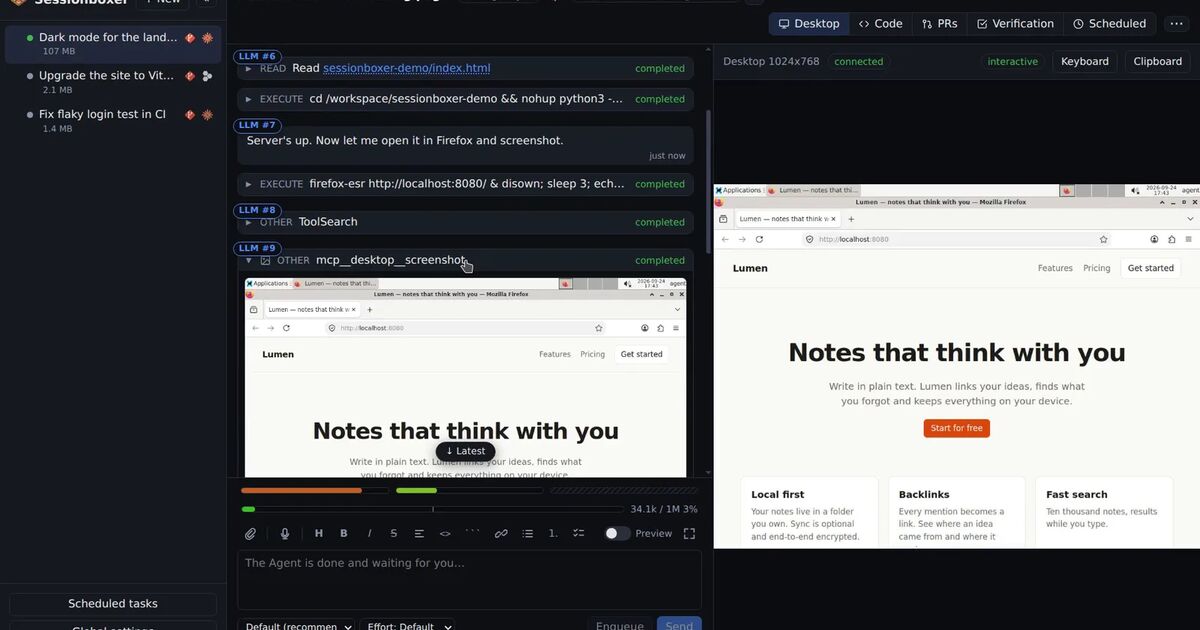
Sessionboxer runs Copilot CLI, among other agents, in a container of its own for each session, on your machine or your server. The Connect your agent chapter describes the login. Sign in with GitHub Copilot runs copilot login --device-code for you and shows the one-time code. You can also paste a fine-grained token with the Copilot Requests permission. The token of a GitHub connector does not work there, because it lacks that permission. The box gets the token as COPILOT_GITHUB_TOKEN and keeps the login file in memory only, and you keep your own Copilot plan, with no Sessionboxer account in between.
In the box the agent runs without permission prompts, because the container is the boundary. That is the same trade as --yolo in your own container. It is only as safe as what the box can reach, and the agent's environment still holds the token while it works. Sessionboxer does not make a Copilot token narrower than you created it. Copilot sessions can also run in a Windows or macOS VM when the work needs one.
If you also run Codex or Gemini CLI, see Run Codex CLI in Docker and Run Gemini CLI in Docker for the same questions with those tools.