
You ask Cursor's agent to add a button to your iOS app. It writes the code, opens the iOS Simulator, taps the new button and checks that it works. That is the demo Cursor posted on October 23. It is also your Mac: the same screen that has your mail, your password manager and a browser logged in to production.
Here is what Cursor announced, what its docs ask you to grant, and what to decide before an agent gets the mouse on the machine you work on.
What Cursor announced
On October 23 Cursor posted "Cursor can now control your computer." In Cursor's words, with Computer Use "agents can click and type across any app on your computer, not just the browser." The agent uses it on its own when a task needs it, and you can ask for it by @-mentioning Computer Use in a prompt. To get it, you update Cursor.
Before this, a Cursor staff reply on the forum listed what a local agent had: a built-in browser tool for web apps, Cloud Agents on a VM with a full desktop (see the capabilities page), or a third-party computer-use MCP server you connect yourself. Native apps on your own machine needed that last option.
Two more details:
- Windows is not there for everyone. The same reply says Computer Use for a local agent on Windows is "in a limited staged rollout" and cannot be turned on by hand.
- The detailed docs are for self-hosted workers. Cursor's page on computer use and desktop sharing covers agents whose loop runs in Cursor's cloud while the clicks happen on a machine you connect. We did not find a docs page for the editor feature itself, so the next section describes the worker.
What the docs ask you to grant
On a Mac, computer use runs through a small helper app called Cursor Computer Use. For a worker, the CLI installs it the first time you run:
agent worker --computer-use start
macOS then needs two permissions for that helper: Accessibility, to move the mouse and type, and Screen Recording, to take screenshots. The docs are specific about where they go. Grant them to Cursor Computer Use, not to Terminal, your shell or the Cursor app. Permissions you gave those apps do not carry over. The worker does not check them for you, so agent worker debug can report the helper as installed while every click still fails. The docs suggest testing with a task that opens a browser and takes a screenshot.
Some other facts from the same page:
- On macOS the worker uses the logged-in desktop session of the user that runs it. Virtual displays and
--displayare Linux only. - macOS 15 and later ask the user now and then to confirm Screen Recording again. If screenshots stop on a long-running worker, look for an "Allow For One Month" prompt.
- An MDM profile cannot grant Screen Recording. A person has to approve it in System Settings.
- On Linux the worker uses an X11 display. It reuses one you already run or creates its own. Watching or taking over the agent's desktop from Cursor (
--share-desktop) is Linux only. - On Enterprise teams, an admin can turn computer use off with a switch under MCP Configuration in team settings. It is on by default.
The My Machines page adds how a worker connects: it opens an outbound connection to Cursor, the agent loop runs in Cursor's cloud, and the terminal commands, file edits and clicks happen on your machine.
What a shared desktop means
Screen Recording is a broad permission. A screenshot shows whatever is on the screen at that moment: a Slack message that just arrived, an email preview, a terminal with a token in its scrollback. The agent sends its screenshots to the model, because that is how it sees. So anything visible during a run can end up in the model's context and in the provider's logs, like any other tool output.
Accessibility is broad too. An agent that can type into any app can type into the wrong one. A prompt injection on a web page the agent opens can now ask for more than a shell command. It can ask for a click in another window.
There is also the plain practical side. A desktop has one pointer and one keyboard focus. Cursor's post does not say how the agent shares them with you. If you move the mouse while it is in the middle of a drag, one of you loses.
Any agent that drives your real desktop has the same reach. Cursor made it easy to turn on, and the agent can pick it up when it decides a task needs it.
Before you turn it on
If you will let the agent click on the Mac you work on, a few habits keep the reach smaller:
- Turn on a Focus mode while it runs, so notifications do not land in its screenshots.
- Close the apps it has no reason to see: mail, chat, the password manager, the browser profile that is signed in to production.
- Stay near the screen while it runs.
- Check System Settings → Privacy & Security from time to time and remove grants you no longer need.
For anything longer, give the agent a desktop that is not yours. The worker docs already point that way: the worker uses the desktop session of the macOS user that runs it, so a separate user account, a second Mac or a macOS VM gives it a screen with nothing of yours on it. On Linux the worker can create its own display.
Cloud Agents are the other option Cursor offers. Each one gets its own VM with a desktop in Cursor's cloud, which suits web apps. It is not your Mac, so your local iOS Simulator is not part of it.
We covered the same question for one browser in letting a coding agent test your site in real Safari, and the same answer applies: decide where the agent runs before you decide what it may click.
Where Sessionboxer fits
This is the maker of Sessionboxer writing, so take the comparison with that in mind.
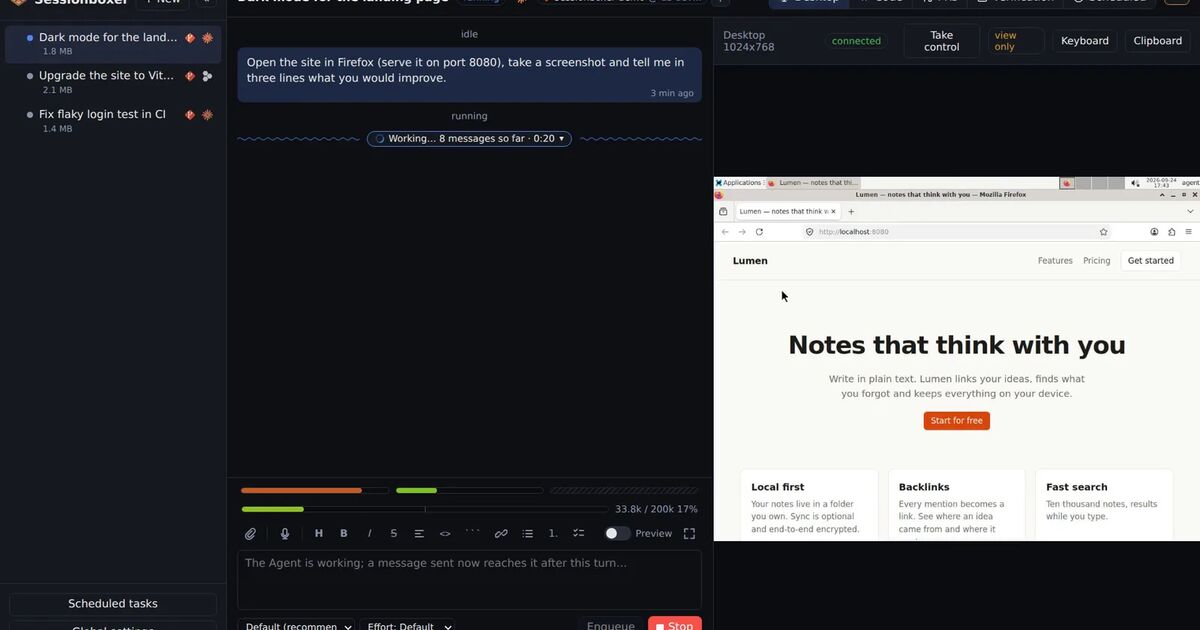
Every Sessionboxer session runs in its own box, and each box has a Linux desktop with Firefox: Xvfb and XFCE at 1024×768. The agent works it through a built-in desktop MCP server with screenshot, click, type, scroll, drag and recording tools. It is a separate screen, so the agent never sees your notifications, your mail or your other windows, and you keep your own mouse.
You watch that screen in the Desktop pane next to the chat. While the agent works the view is read-only, so you do not fight over the pointer. Take control gives you the mouse and keyboard until the agent's next turn, which is handy when a site needs you to log in for it. The Desktop chapter of the guide has the details. Cursor is one of the agents a session can run, next to Claude Code, Codex and others, on your own Cursor subscription.
When Verify each turn is on, every turn the agent finishes is followed by a check on that desktop. The agent plans two to five end-to-end cases, runs them with the mouse and browser, fixes what fails and replies with a captioned video. We wrote more about that loop in letting the coding agent test its own work.
What Sessionboxer does not do:
- It does not drive your own desktop. If the app you need to test only exists on your Mac, a box cannot open it.
- The default desktop is Linux. There is no iOS Simulator in it.
- Windows and macOS sessions put the agent in a QEMU virtual machine with its own Windows or Mac desktop. They need a Linux host with KVM, and the macOS one comes with a licence question you answer yourself. We have not tested the iOS Simulator inside a macOS session, so we make no claim about it.
Which one to use
If the job is a native Mac app or the iOS Simulator and you trust the task, Cursor's Computer Use on your own Mac is the shortest path. Clear the screen first and stay nearby.
If the job is a web app, or you want the agent to work while you use your computer, give it a desktop of its own: a Cursor cloud agent, a worker on a separate user account or machine, or a box on your own server.