
You put Codex CLI in a container so it can work without asking before every command. Then two things go wrong. codex login wants to open a browser the container does not have. And Codex brings its own sandbox, which on Linux needs kernel features that Docker's defaults can block.
Both have clean answers in OpenAI's docs. This post puts them in one place: how Codex logs in inside a container, which of the two sandboxes should be the wall, and what to check before you let it run without prompts. We make Sessionboxer, which runs Codex this way, so that part is at the end and says what it does not do. Everything here comes from the linked docs as of 22 October 2026, tested with codex-cli 0.163.0.
Two sandboxes, and you need one of them
On your laptop, Codex limits the commands it runs. The sandbox docs describe three modes: read-only, workspace-write (the default: edits inside the project, routine commands, no network) and danger-full-access, which "removes the filesystem and network boundaries." On Linux, Codex enforces this with bubblewrap, which needs to create user namespaces.
Inside Docker, that is where it breaks. The README of OpenAI's own dev container folder says that without extra options, "Docker's default runtime profile can block bubblewrap's namespace setup before Codex's own seccomp filter is installed."
So you pick one wall:
- Let the container be the boundary and turn Codex's sandbox off.
- Keep Codex's sandbox inside the container, and loosen Docker's profiles so it can start.
Docker Sandboxes and Sessionboxer both take the first. The second is what OpenAI ships for teams that want an allow list on the network.
Option 1: the container is the wall
Here is a small image. It installs the CLI with npm, as the Codex README shows, and runs as the image's normal node user:
FROM node:22-bookworm
RUN npm install -g @openai/codex \
 && mkdir -p /home/node/.codex && chown node:node /home/node/.codex
USER node
WORKDIR /workspace
The ~/.codex folder is created ahead of time so a named volume mounted there belongs to node and Codex can write its login into it. Build and run:
docker build -t codex-box .
docker run --rm -it \
  -v "$PWD":/workspace \
  -v codex-home:/home/node/.codex \
  codex-box codex --dangerously-bypass-approvals-and-sandbox
The command line reference lists --yolo as a short alias for that flag and describes it as: "Run every command without approvals or sandboxing. Only use inside an externally hardened environment." Its safety tips are stricter: avoid the flag "unless you are inside a dedicated sandbox VM." To make it the default inside the image, put the same choice in ~/.codex/config.toml:
approval_policy = "never"
sandbox_mode = "danger-full-access"
"Externally hardened" is your job. With the command above:
- The bind mount means every edit lands in your folder on the host, including
.git/hooksand CI files. Mount only the project, never your home directory. - Do not mount
/var/run/docker.sock. With it, the agent controls your host's Docker. Our post on Docker in Docker for coding agents covers the other ways to give it one. - The network is open. Codex's own
workspace-writemode keeps it off, butdanger-full-accessturns that off along with everything else, and Docker's default bridge lets the container reach the internet and your local network.
Option 2: Codex's sandbox inside the container
OpenAI's devcontainer.secure.json profile keeps the inner sandbox. According to the same README, it installs bubblewrap in setuid mode, "disables Docker's outer seccomp and AppArmor profiles so bubblewrap can construct Codex's inner sandbox," starts a firewall with an allow list, blocks IPv6 so the list cannot be bypassed, and needs the NET_ADMIN and NET_RAW capabilities. You start it with:
devcontainer up --workspace-folder . --config .devcontainer/devcontainer.secure.json
You weaken the container to make the inner sandbox work, and in return you get Codex's per-command limits plus a network allow list. If outbound traffic is your main worry, this profile, or a microVM, is where to look.
Logging in without a browser
codex login starts a local server and waits for your browser to call it back. In a container that callback usually has nowhere to land. The authentication docs give three ways out.
An API key is the simplest, and the docs recommend it for automation. Pipe it in so it does not end up in your shell history:
printenv OPENAI_API_KEY | codex login --with-api-key
Device code login uses your ChatGPT plan. Run codex login --device-auth, open the link on any device, sign in and type the one-time code. It is in beta, and it has to be turned on first: in your ChatGPT security settings for a personal account, or by a workspace admin. Without that, people report it fails with an error that tells you to contact your workspace admin (openai/codex#9253).
The fallback is to log in on your own machine and copy ~/.codex/auth.json in. The docs give a docker cp recipe. With the volume above, this works too:
docker run --rm -i -v codex-home:/home/node/.codex codex-box \
  sh -c 'cat > ~/.codex/auth.json' < ~/.codex/auth.json
If your Mac or PC keeps the login in the OS keychain, there is no auth.json to copy. Set cli_auth_credentials_store = "file" in your local config and log in again.
Two details decide whether the copied login keeps working. Codex refreshes the tokens in that file as it runs and writes them back. If the file lives only in a container you delete with --rm, the refreshed copy goes with it, which is why the example keeps ~/.codex on a volume. And OpenAI's CI/CD auth guide says to use this pattern only when "only one machine or serialized job stream will use a given auth.json copy." Do not paste the same file into five containers at once.
The docs also say to treat auth.json like a password. With the sandbox off, the agent can read it, and with an open network it could send it anywhere. Our guide to keeping secrets away from your coding agent has more on that.
The shortcut: Docker Sandboxes
If you would rather not build the image, Docker's sbx has a Codex page. sbx run codex ~/my-project starts Codex in a microVM with codex --dangerously-bypass-approvals-and-sandbox as its default command. You log in on the host with sbx secret set openai --oauth, and the docs say "credentials are never exposed inside" the sandbox. The same page notes that it does not read your user-level ~/.codex, only the project's configuration. We compared sbx with a dev container for Claude Code in this earlier post, and most of it applies to Codex too.
Codex in Sessionboxer
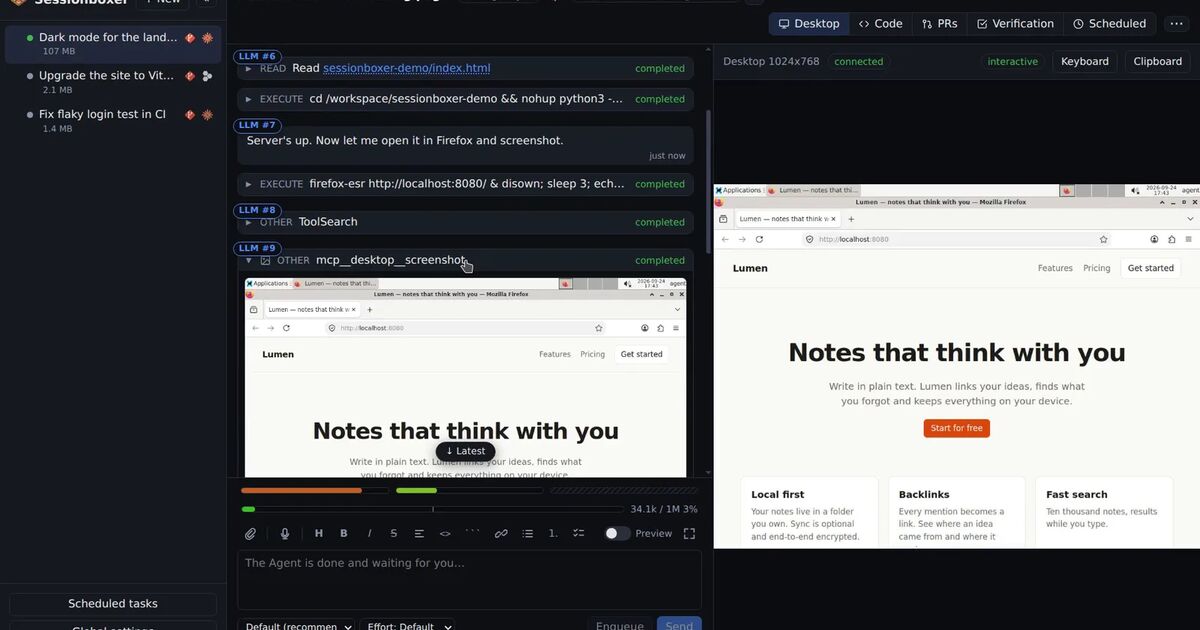
Sessionboxer takes option 1 and does the setup for you. Each session gets its own Docker container, and Codex runs inside it through codex-acp. The image ships a ~/.codex/config.toml with approval_policy = "never" and sandbox_mode = "danger-full-access", so the box is the wall and the agent runs without prompts. Your repositories are cloned into the box, not bind-mounted, so nothing on your machine changes until you push or pull the work out.
The login is handled in the connect your agent step. Sign in with Codex shows a one-time code to type into OpenAI's page, or you paste the auth.json from codex login. Codex refreshes the tokens while it works, and Sessionboxer stores the refreshed file back so your other Codex sessions keep working. It runs on your own ChatGPT plan; there is no Sessionboxer account. The token goes only to the boxes of sessions that use Codex, lives on tmpfs there and is never stored in snapshots.
What it does not do:
- It does not restrict the box's network. The agent can reach anything your machine can.
- The agent can read its own login inside the box. That is the same exposure as option 1.
- A container shares your host's kernel. A microVM like Docker's is a stronger wall.
Which one to pick
| Container as the wall | Codex sandbox inside | Docker Sandboxes | Sessionboxer | |
|---|---|---|---|---|
| Codex flags | --dangerously-bypass-approvals-and-sandbox |
Defaults (workspace-write) |
Bypass, by default | danger-full-access, never |
| Boundary | A container | A container with seccomp and AppArmor off | A microVM | A container per session |
| Network | Open | Allow list | Policy you choose | Open |
| Login inside | auth.json or API key |
auth.json or API key |
Stays on the host | auth.json, on tmpfs |
| Your files | Bind-mounted | Bind-mounted | Mounted, or a private clone | Cloned into the box |
For one trusted project on your own machine, option 1 with a volume for ~/.codex is enough. If you open repositories you do not trust, choose something that closes the network: OpenAI's secure profile or Docker Sandboxes. If you run several Codex tasks at once and want a desktop, VS Code and a chat for each, the start a session chapter shows how that looks in Sessionboxer.