
Most coding agents ask before they run a shell command. OpenCode does not, unless you tell it to. Its permissions docs say that if you configure nothing, most permissions default to allow. That includes bash. The agent can run npm install, curl or rm on your laptop without a prompt.
That is a good reason to run it in a container instead. This post shows how. It covers the official image and what it is missing, a small image of your own, getting your provider login into the container, and the permission rules that still apply inside it. We ran every command below with OpenCode 1.19.5 in Docker on Linux.
The official image, and what it leaves out
The OpenCode intro page lists a Docker image among the install methods:
docker run -it --rm ghcr.io/anomalyco/opencode
It works. It is also very small. When we looked inside, the image was Alpine Linux, ran as root in /, and had the opencode binary and ripgrep. It had no git, no bash, no Node.js, no Python and no curl. We asked the agent to run a Python file in a mounted folder. It tried, and the shell answered python3: not found.
So the official image is fine for asking questions about code. For an agent that builds, tests and commits, you need your own image with your project's tools in it. It also helps to run as a normal user, so the files the agent writes into your folder do not belong to root.
A note on versions before you copy anything: the OpenCode site now documents OpenCode 1 and OpenCode 2. The intro page says both use the opencode command and cannot be installed side by side, and that Homebrew's opencode formula installs version 2. The commands here are from the OpenCode 1 docs, and the npm package opencode-ai gave us 1.19.5.
A small image of your own
FROM node:22-bookworm
RUN npm install -g opencode-ai \
 && mkdir -p /home/node/.local/share/opencode /home/node/.config/opencode \
 && chown -R node:node /home/node/.local /home/node/.config
USER node
WORKDIR /workspace
ENTRYPOINT ["opencode"]
Build it with docker build -t opencode-box . and check it with docker run --rm opencode-box --version. The Debian base already has git, bash and curl. Add whatever else your project needs with apt-get before the USER line.
Run one task without the TUI with opencode run:
docker run --rm \
  -v "$PWD":/workspace \
  opencode-box run "Run the tests and fix the first failure"
For the interactive TUI, add -it and leave out run.
One surprise. With no login at all, our first run still got an answer. The header said build · big-pickle, a free model from OpenCode Zen. That is OpenCode's own model service, not your provider. If you expect your code to go to Anthropic or OpenAI, log in first and pick the model with -m provider/model.
Getting your login into the container
OpenCode logs in once per model provider with opencode auth login. The CLI docs say the result goes into ~/.local/share/opencode/auth.json. For providers like Anthropic and OpenAI, that login happens in a browser that hands the result back to the CLI on your machine. A container usually has no browser, so the easy path is to log in on your own machine and bring the file in.
Do not mount your whole ~/.local/share/opencode folder. The troubleshooting page says it holds auth.json, the logs, opencode.db (the projects, sessions and messages of every project you have used OpenCode on) and the snapshots it uses for undo. The agent in the container can read all of that. Give it a folder of its own with a copy of the login:
mkdir -p ~/opencode-box-data
cp ~/.local/share/opencode/auth.json ~/opencode-box-data/
chmod 600 ~/opencode-box-data/auth.json

docker run --rm -it \
  -v "$PWD":/workspace \
  -v ~/opencode-box-data:/home/node/.local/share/opencode \
  opencode-box
Mount it read-write. OpenCode refreshes OAuth tokens inside that file while it works, so it needs to write there. The container's sessions now live in that folder too, so opencode -c continues the last one next time.
Two other things to know. First, the copy holds the tokens of every provider you logged in to, not only the one this project uses. If that is too much, run opencode auth login inside the container, or use a fresh API key for that one provider. Second, the CLI docs say OpenCode also picks up provider keys from your environment and from a .env file in your project. Check what is in the project's .env before you mount it. Our post on keeping secrets away from your coding agent covers that question more broadly.
The permissions it asks about, and the ones it does not
The defaults, from the permissions docs:
- most permissions are
allow, includingbash,editandwebfetch external_directory(a tool touching a path outside the folder OpenCode started in) anddoom_loop(the same tool call three times in a row) areaskreadisallow, but.envfiles areask
The .env rule surprised us. We put a fake secret in a .env file and asked the agent to read it with its read tool. The run printed permission requested: read (workspace/.env); auto-rejecting. Then we asked it to run cat .env with bash. It printed the secret. The ask rule covers the read tool. The shell is allow, and the shell can read any file.
In opencode run, there is nobody to answer an ask, so OpenCode turns it into a no. Reading /etc/hostname was refused the same way, as an external directory. If a headless run keeps failing with "The user rejected permission to use this specific tool call", this is the reason.
The --auto flag changes that. The docs say it approves every request that is not explicitly denied. With it, the same run read the file outside the project and ran its command. Explicit deny rules still hold. You can set rules in opencode.json or pass them for one run with the OPENCODE_PERMISSION variable:
docker run --rm \
  -v "$PWD":/workspace \
  -e OPENCODE_PERMISSION='{"bash":"deny"}' \
  opencode-box run "Summarize the repository"
With that variable set, the agent told us it had no bash tool at all.
Pattern rules such as "rm *": "deny" are useful for catching mistakes. They do not stop an agent that wants to delete a file, because there are many other commands that delete files. Inside a container you can afford to be relaxed about this. The container decides what the agent can reach: the folder you mounted, the login you copied in, and the network. Commit and push before a long run, and a bad turn costs you a git reset. We went through the same choice for Codex in Docker and for Gemini CLI in Docker, and the answer is similar for each.
What Sessionboxer does here
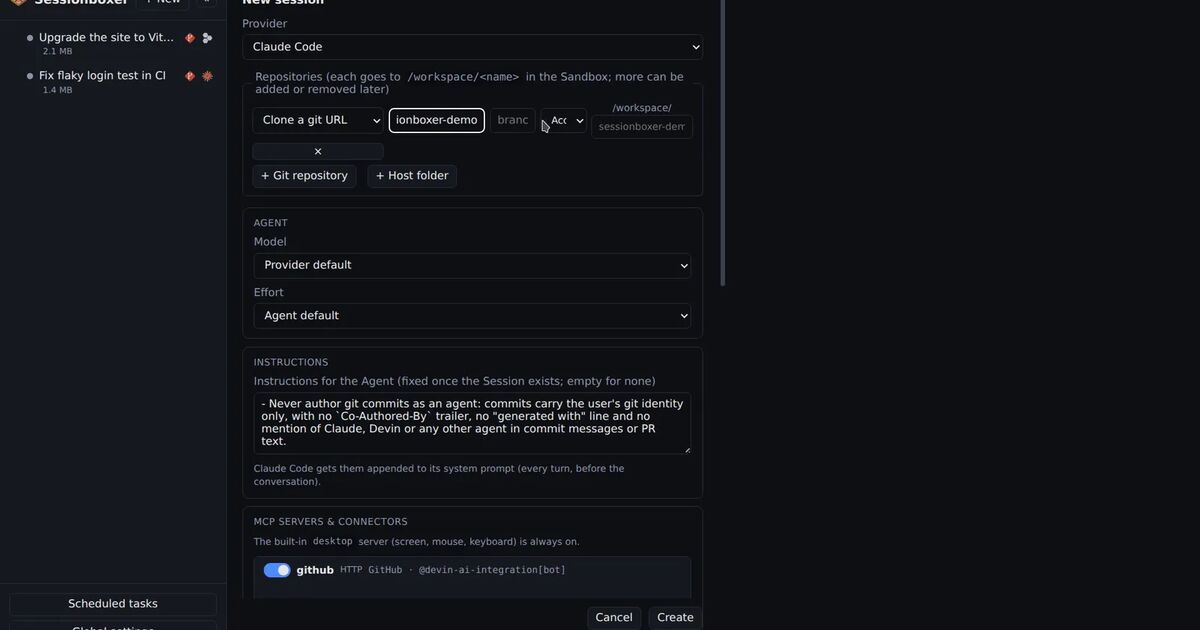
Sessionboxer runs each session in its own Docker container, as one box per session describes, and OpenCode is one of the agents it can start there. Its image ships an OpenCode config with "permission": "allow", the update check off and sharing off. That is the approach agents that don't ask explains: the box is the boundary, so the agent does not stop to ask.
Login works the way the connect your agent chapter says. You run opencode auth login on your own machine for each provider, then paste or import auth.json in Settings, or click Use this machine's OpenCode login when Sessionboxer runs on that machine. An OpenCode Zen API key pasted alone works too. There is no Sign in with OpenCode button, because each OpenCode login is a browser flow that calls back to its own CLI. The file is kept in memory inside the box, not on its disk, so snapshots never hold it. When OpenCode refreshes a token, Sessionboxer stores the new file so your other OpenCode sessions keep working. Sessions do not start until a login is configured, so a session cannot quietly fall back to a free Zen model.
It is your own subscription, and that has one limit here. OpenCode does not tell Sessionboxer about your provider's usage windows, so the usage bars for an OpenCode session point you to the provider's dashboard and show no numbers.
OpenCode runs in the Docker Linux sessions and in Windows sessions. It is not in the list of agents for macOS sessions. To try it, follow start a session and pick OpenCode in the agent list.
If you would rather stay with plain Docker, the Dockerfile above, a copied auth.json in a folder of its own and a decision about --auto are all you need.