
You want Cursor's agent to work on a task while you do something else, so you put its CLI in a container. Three things get in the way. agent login wants to open a browser the container does not have. A fresh install asks before almost every shell command. And Cursor's own sandbox, which would make those prompts safer to skip, does not start under Docker's default settings.
We tested everything below with Cursor CLI 2026.10.22-27dcf5f on Docker 29.7.2 and a Linux 6.8 kernel, and checked it against Cursor's CLI docs as they read on October 30, 2026. We make Sessionboxer, which runs Cursor this way; that part comes near the end.
A small image
Cursor installs its CLI with a script. The installation page gives curl https://cursor.com/install -fsS | bash for Linux, which puts agent in ~/.local/bin. The CLI brings its own runtime, so the base image is there for git, curl and a normal user:
FROM node:22-bookworm
USER node
RUN curl https://cursor.com/install -fsS | bash \
 && mkdir -p /home/node/.cursor /home/node/.config/cursor
ENV PATH=/home/node/.local/bin:$PATH
WORKDIR /workspace
The two folders are created ahead of time so that volumes mounted there belong to node. ~/.config/cursor is where the CLI keeps its login on Linux. ~/.cursor holds cli-config.json and per-project data.
The script installs the newest version on the day you build. The docs say the CLI "will try to auto-update by default", but in a container you throw away that update is lost, so rebuild the image when you want a newer one.
Logging in without a browser
The authentication page gives two ways in.
The browser login works from a container with one variable. With NO_OPEN_BROWSER=1, agent login prints the link instead of trying to open it:
docker run --rm -it -e NO_OPEN_BROWSER=1 \
  -v cursor-auth:/home/node/.config/cursor \
  cursor-box agent login
In our run it printed "Waiting for browser authentication..." and a link to cursor.com. The link does not point back at localhost. Docker's Cursor page for Sandboxes explains why: the CLI finishes the login by polling api2.cursor.sh/auth/poll. So you can open the link in the browser on your host, or on your phone, and the container picks up the result. We stopped at the link and did not sign in with a real account for this post. agent status tells you whether it worked.
The volume matters. Cursor refreshes the token inside the login file while it works. If the file lives in a container you start with --rm, the refreshed copy goes away with it.
The other way is an API key from the Cursor dashboard. The docs recommend it for "automation, scripts, or CI environments", and the environment variable is the preferred form:
docker run --rm -it -e CURSOR_API_KEY -v "$PWD":/workspace cursor-box agent
Passing -e CURSOR_API_KEY without a value copies it from your shell, so the key is not typed into your history. Without a login or a key, agent -p stops with "Authentication required".
The sandbox that will not start in Docker
On Linux, Cursor confines the agent's shell commands with Landlock and seccomp. The run modes page lists what that needs: kernel 6.2 or later, and unprivileged user namespaces. A container's default seccomp and AppArmor profiles block the second.
You can check it without logging in, because agent sandbox run runs one command under the sandbox. In a default container it failed with:
Failed to unshare namespaces: EPERM: Operation not permitted
The same error came back with only --security-opt seccomp=unconfined, and with only --security-opt apparmor=unconfined. With both, the sandbox started: CURSOR_SANDBOX_LANDLOCK_STATUS read fully_enforced, and a write to the home folder was refused with "Permission denied".
A fresh install does not use the sandbox anyway. The cli-config.json it wrote on first run had "approvalMode": "allowlist", "sandbox": { "mode": "disabled" } and a single allowed command, Shell(ls). So out of the box the agent asks before nearly every command.
Codex has the same trade inside Docker, which we went through in Run Codex CLI in Docker: you pick which layer is the boundary.
Option 1: the container is the wall
Let the container be the boundary and let the agent run commands without asking:
docker run --rm -it \
  -v "$PWD":/workspace \
  -v cursor-auth:/home/node/.config/cursor \
  -v cursor-home:/home/node/.cursor \
  cursor-box agent --force
The parameters reference describes --force as "Force allow commands unless explicitly denied", and --yolo is an alias. For scripts, the headless page notes that agent -p without --force only proposes changes and does not write them. Two more flags help when nobody watches. --trust trusts the workspace without a prompt, in headless mode only, and --approve-mcps approves all MCP servers.
"Unless explicitly denied" is worth using. The permissions page says deny rules take precedence over allow rules, so a deny list in ~/.cursor/cli-config.json still holds under --force:
{
  "version": 1,
  "editor": { "vimMode": false },
  "permissions": {
    "allow": [],
    "deny": ["Read(.env*)", "Write(**/.env*)", "Shell(rm)"]
  }
}
What the container does not protect depends on how you start it:
- The bind mount means every edit lands in your folder on the host, including
.git/hooks. Mount the project, never your home folder. - Do not mount
/var/run/docker.sock; with it the agent controls your host's Docker. Our post on Docker in Docker for coding agents covers the other ways to give it one. - The network is open. Docker's default bridge reaches the internet and your local network.
- The agent can read its own login in
~/.config/cursor, and with an open network it could send it anywhere.
Option 2: Cursor's sandbox inside the container
Start the container with both profiles off and turn the sandbox on:
docker run --rm -it \
  --security-opt seccomp=unconfined --security-opt apparmor=unconfined \
  -v "$PWD":/workspace -v cursor-auth:/home/node/.config/cursor \
  cursor-box agent --sandbox enabled
Per the run modes page, a sandboxed command can read and write the workspace, cannot write protected paths such as .git/hooks and .git/config, and reaches the network only through a domain allowlist. By default that is your sandbox.json plus Cursor's built-in defaults "for common package managers and language tools". Option 1 has no such network list. The cost is a container with two of Docker's protections off, which is weaker around anything that is not a sandboxed command.
The shortcut: Docker Sandboxes
Docker's sbx run cursor ~/my-project starts Cursor in a Docker Sandbox with cursor-agent --yolo as its default command. Store an API key with sbx secret set cursor, or sign in on first run. Docker's page says its proxy intercepts the login's token exchange, so "credentials are managed by the host and aren't stored inside the sandbox." It also says the sandbox does not read your user-level ~/.cursor, only the project's configuration. We compared sbx with a dev container for Claude Code in an earlier post, and most of it holds for Cursor.
Cursor in Sessionboxer
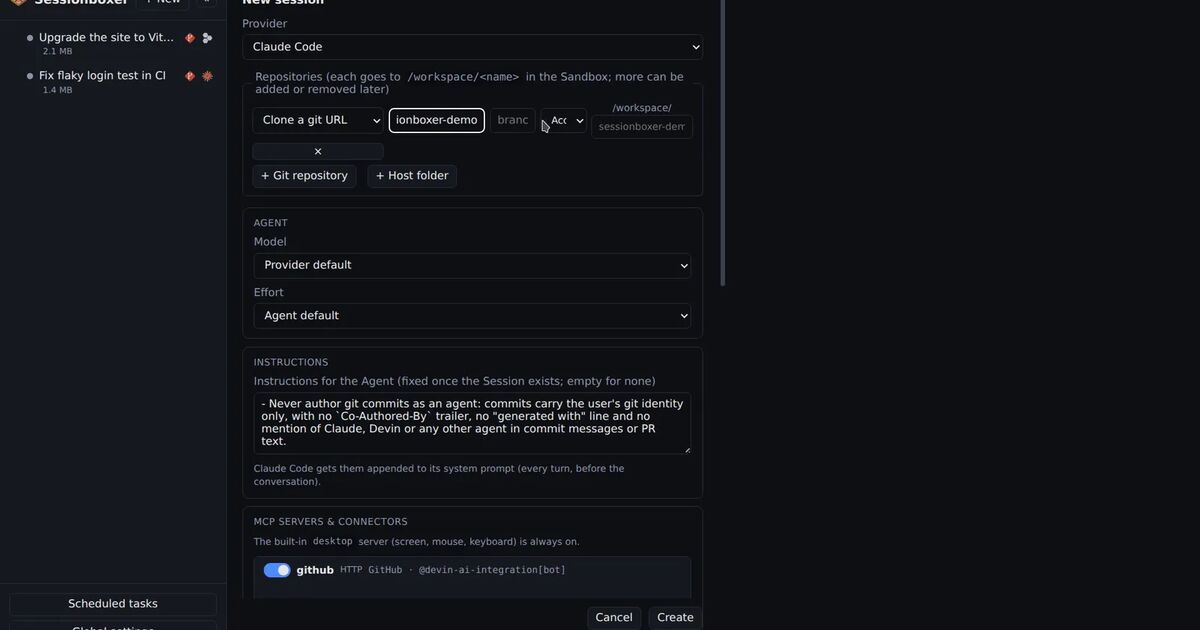
Sessionboxer takes option 1 and does the setup. Each session gets its own Docker container, and Cursor runs there as cursor-agent --force --approve-mcps --trust acp, so it works without prompts. The image's cli-config.json keeps the sandbox off, because the box is the wall, and turns off the "Made with Cursor" commit and pull request trailers. Your repositories are cloned or copied into the box, and nothing in the box writes back to your machine.
The login is the connect your agent step. Sign in with Cursor opens Cursor's page in your browser and the dialog notices when it is done. You can also paste the auth.json that agent login wrote on your machine, or an API key. It runs on your own Cursor plan. In the box the login file sits on tmpfs, and the refreshed file is stored back so your other Cursor sessions keep working.
What it does not do:
- It does not restrict the box's network.
- The agent can read its own login inside the box, as in option 1.
- A container shares your host's kernel, so it is a weaker wall than a VM.
- The image pins Cursor CLI
2026.09.23-86fc751, older than the version we tested here, and auto-update is off. A new CLI feature reaches the box only with a new image.
Which one to pick
| Container as the wall | Cursor sandbox inside | Docker Sandboxes | Sessionboxer | |
|---|---|---|---|---|
| Cursor flags | --force |
--sandbox enabled |
--yolo by default |
--force --approve-mcps --trust |
| Boundary | A container | A container with seccomp and AppArmor off | A Docker Sandbox | A container per session |
| Network | Open | Domain allowlist for sandboxed commands | Through the host proxy | Open |
| Login inside | Login file or API key | Login file or API key | Stays on the host | Login file, on tmpfs |
| Your files | Bind-mounted | Bind-mounted | Mounted, or none | Cloned or copied into the box |
For your own project on your own machine, option 1 with volumes for the login and the config is enough. If you open repositories you do not trust, pick something that closes the network: Cursor's sandbox inside the container, or Docker Sandboxes. If you run several Cursor tasks at once and want a desktop, VS Code and a chat for each, the start a session chapter shows how that looks in Sessionboxer.