
You moved your coding agent into a Docker container so it can run commands without asking you first. That part works. Then the agent writes "I changed the handler in src/api/orders.ts:88" and you want to look at line 88. Or run one test yourself. Or fix a typo while it works on something else. The files are inside the container, and your editor is outside it.
There are three common ways to get VS Code onto those files. They all work. The difference is what each one carries across the container wall while you edit, and that matters when the thing on the other side is an agent with its prompts turned off.
Way 1: mount the folder and open it on your machine
The simplest setup is a bind mount. You start the container with your project folder mounted into it and open the same folder in your own VS Code:
docker run -it --rm -v "$PWD":/workspace -w /workspace my-agent-image
code .
You keep your editor, your extensions, your keybindings and your Git tools. The agent's edits appear in your editor as it saves them.
The cost is that the folder is your real folder. Whatever the agent does to /workspace, it does to your copy, including deletes. It also means the agent can write files that programs on your machine will run later. Git runs the scripts in .git/hooks when you commit, and that commit now happens on your laptop, outside the container. The same goes for a .vscode/tasks.json, a Makefile or a package.json script you run without reading first.
There are smaller annoyances too. If the container runs as root, new files on your disk are owned by root. Packages the agent installs inside Linux, such as node_modules with native parts, may not run on a Mac or Windows host.
A bind mount is fine for code you trust and an agent you watch. For a long run nobody watches, keep the agent's copy in the container and use one of the next two ways.
Way 2: Dev Containers, Attach to Running Container
Microsoft's Dev Containers extension can attach your desktop VS Code to any running container, "regardless of how it was started". Open the Command Palette and run Dev Containers: Attach to Running Container..., or use the Containers view in the Remote Explorer. The steps are on the attach page of the VS Code docs.
The Dev Containers FAQ explains what happens next. The extension downloads VS Code Server on your machine, copies it into the container, and talks to it through docker exec. Extensions run inside the container. Your files stay in the container, so the agent's deletes stay there too.
The machine running VS Code needs to reach the Docker daemon. If the agent's container runs on a server, the Dev Containers docs describe combining Remote - SSH with Dev Containers, and then you do not need Docker on your laptop at all.
You can save settings for the next attach. Dev Containers: Open Container Configuration File keeps a small JSON file per image (or per container name) with keys such as workspaceFolder, remoteUser and extensions:
{
  "workspaceFolder": "/workspace",
  "remoteUser": "agent",
  "extensions": ["dbaeumer.vscode-eslint"]
}
Now the part that matters for agents. The page on sharing Git credentials with your container says the extension copies your local .gitconfig into the container on startup. If you use a credential helper, "Credentials you've entered locally will be reused in the container and vice versa." If you use SSH keys, "the extension will automatically forward your local SSH agent if one is running."
That is convenient when the container is your own dev environment. In a box where an agent runs without prompts, it means that while you are attached, a process in the container can ask Git for your saved credentials or ask your SSH agent to sign with your keys. The agent does not have to find your keys first. A plain git push is enough.
What you can do about it:
- Give the container its own Git login, a fine-grained token or a deploy key for that one repository, so the agent never needs yours.
- Remove the keys from your SSH agent while you are attached (
ssh-add -D), or do not run one. - Detach when you are done reading. Close the remote window instead of leaving it open overnight next to a running agent.
How to keep your secrets away from a coding agent that runs without prompts covers the other places a login tends to leak into a box.
Way 3: run VS Code inside the box and open it in a browser
The third way puts the editor itself in the container. OpenVSCode Server is Gitpod's MIT-licensed build of VS Code that runs as a server and opens in a browser. The newest release when we checked on November 9 was 1.109.5. A few lines in the agent's Dockerfile install it (the image needs curl):
ARG OVS=1.109.5
RUN curl -fsSL "https://github.com/gitpod-io/openvscode-server/releases/download/openvscode-server-v${OVS}/openvscode-server-v${OVS}-linux-x64.tar.gz" \
  | tar -xz -C /opt \
 && ln -s /opt/openvscode-server-v${OVS}-linux-x64/bin/openvscode-server /usr/local/bin/openvscode-server
Then start it with a token and publish its port to your own machine only:
docker run -d --name agent-box -p 127.0.0.1:3000:3000 \
  -v "$PWD/vscode-token":/run/vscode-token:ro my-agent-image \
  openvscode-server --host 0.0.0.0 --port 3000 --connection-token-file /run/vscode-token
Open http://localhost:3000/?tkn=<your token>&folder=/workspace. We ran 1.109.5 this way: without the token the server answers 403, with it the editor loads.
The README says the server listens on localhost by default, which is why --host 0.0.0.0 is needed inside a container. It also says the official Docker image runs with --without-connection-token, so anyone who reaches the port gets the editor and its terminal. If you use that image, change the entrypoint or keep the port on 127.0.0.1.
Nothing from your laptop goes into the box this way. The browser talks to the server and nothing else; your SSH agent, your .gitconfig and your credential helper stay where they are. The price is that this is a separate VS Code. Your desktop extensions and settings are not there, and extensions come from Open VSX, not Microsoft's marketplace, so a few you use may be missing. When you open it from another machine over plain HTTP, the browser treats the page as insecure and some parts, such as the webviews behind the Markdown preview, stop working. Put HTTPS in front of it for that.
The three ways side by side
| Bind mount | Dev Containers attach | VS Code in the box | |
|---|---|---|---|
| Where the agent's files live | On your disk | In the container | In the container |
| Your extensions and settings | Yes | Yes, installed into the container | No, Open VSX only |
| What crosses into the box | Nothing; the box writes to your disk instead | .gitconfig, credential helper, SSH agent |
Keystrokes and screen only |
| Needs on your side | Docker | Docker or SSH to the host, the extension | A browser |
| Main risk | Agent's files run on your machine later | Agent uses your Git logins while you are attached | An open port without a token |
How Sessionboxer does it
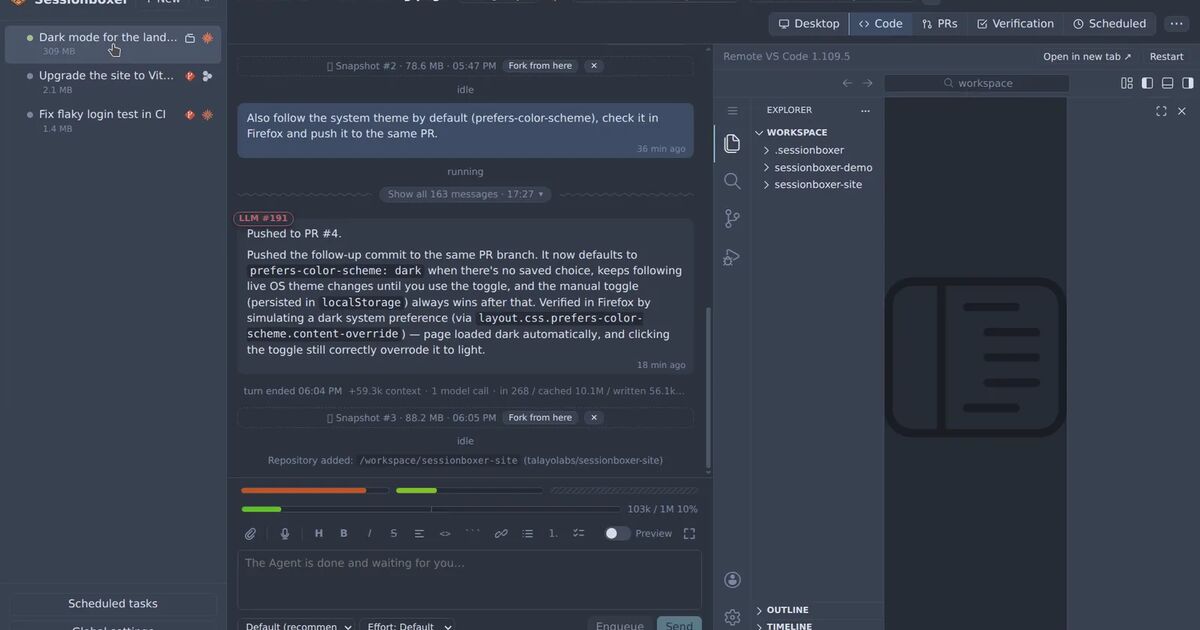
Sessionboxer took the third way. Each session runs in its own Docker container, and the Code tab opens VS Code running inside that box. It is openvscode-server, started the first time you open the pane and stopped with the box. The box is on a private Docker network and publishes no host ports; the browser reaches the editor through the Control Plane on 127.0.0.1:4000, behind the same login as the rest of the UI.
File paths in the chat are links into that editor, so src/api/orders.ts:88 opens the file at line 88. The Terminal tab opens as many shells in the project folder as you want. Settings and extensions you install live in the box, so they survive Stop and Resume and travel with snapshots. VS Code's own AI features are turned off in the box, so the agent in the chat is the only agent in the session. The VS Code, terminals and themes chapter of the guide has the details, including how to turn those AI features back on.
What it does not do:
- It does not attach your desktop VS Code. Your local extensions and keybindings are not in the box.
- Extensions come from Open VSX only.
- Windows and macOS VM sessions have no VS Code pane yet. You edit there through the agent, the Terminal or the desktop.
- From another machine, the Code pane needs HTTPS, for the same browser reason as above.
If what you want from the editor is mostly a careful read of the diff before a commit, how to review a coding agent's changes before you commit them goes through that step by step.