
A message arrives in Teams: "IT here. Please confirm your Copilot license at github.com/login/device and enter code 4F2A-9C1B." The link goes to the real GitHub. The page asks you to approve GitHub Copilot CLI, which you use every day. You click Authorize.
You have just logged someone else's copy of Copilot CLI into your GitHub account. On November 17, 2026, Microsoft's security research team published a lab study of exactly this, using Copilot CLI as the example. Here is how the trick works, what the approval gave the attacker in their lab, and what to check today. We build Sessionboxer, which runs coding agents in containers. It comes up near the end, briefly, because the main defence here is a habit.
How device code sign-in works, and how it is abused
The OAuth device flow exists for programs that cannot show a full browser: command-line tools, TVs, a terminal on a server. The program asks GitHub for a short code. You type that code on GitHub's verification page and approve. The program, which has been polling GitHub, then receives a token.
The program that asked for the code is the one that gets the token. Nothing on the page tells you which program that is, or on whose machine it runs. In device code phishing, the attacker starts the request on their own machine and sends you the code with a believable story. Microsoft's post makes the point plainly: you sign in on the real GitHub site, so a familiar domain cannot tell you whether the request was yours.
The attacker also chooses the scopes. In Microsoft's lab, the request used Copilot CLI's public client ID and asked for repo, read:user, read:org, gist and codespace. That client ID is public by design, so anyone can start a flow that looks like Copilot CLI's. Microsoft adds that any public client supporting the device flow can be abused the same way.
Microsoft has reported device code phishing in real campaigns before, naming Storm-2372 and EvilTokens. What is new is the question it asked next: what does the same approval give an attacker when the account drives a coding agent?
What one approval reached in the lab
Microsoft lists four outcomes. All of them used features working as designed, and Microsoft says it has not seen them in the wild. Each depends on the account's permissions and on which features are turned on.
| Outcome | What it needs |
|---|---|
| Steer a running Copilot CLI session and have the agent run commands on the victim's machine | Remote control enabled, an organization policy that allows it, the machine online, and the local permission and approval settings |
| Add misleading entries to the agent's memory that later sessions may use | Copilot Memory enabled |
| Read earlier Copilot CLI sessions, including code snippets, file paths and design talk | Session syncing to the cloud enabled |
| Read private repositories the account can see | The scopes the attacker asked for, and the account's own access |
The first row is the one that changes things. GitHub's remote control docs say a remote session can approve or deny permission requests, answer the agent's questions, approve plans, switch modes and submit new prompts. The docs also say remote control "is only available to the person signed in to GitHub with the same account that started the CLI session." That is true, and it is also the problem: after the phished approval, the attacker is signed in as that account.
The memory row matters because it outlives the token. If you revoke the authorization next week, a wrong "fact" planted in memory can still steer what the agent does.
What to check today
Start with your account. GitHub's page on reviewing authorized OAuth apps is under Settings → Applications → Authorized OAuth Apps. Look for Copilot CLI and GitHub CLI entries. If you see an authorization you cannot explain, revoke it and log in again on your own machines.
Then look at the security log (Settings → Security log; GitHub keeps 90 days). The security log events reference lists oauth_authorization.create, the event for a new OAuth app authorization. A new Copilot CLI authorization on a day you did not log in is the signal. You can filter with:
action:oauth_authorization.create
Next, decide whether you need remote control at all. GitHub's docs say Copilot CLI sessions are only steerable from your local machine by default, and the configuration reference shows /remote on and /remote off for the current session. For Business and Enterprise seats it also needs the organization policy "Store local sessions in the Cloud" set to "View and control", which is unconfigured by default. If you are an organization owner and nobody uses remote control, "View from cloud" or disabled is the smaller setting. Enterprise owners also have a remoteControl managed setting that can require the controlling client to be SSO-authorized for specific organizations.
Session syncing is a separate switch. GitHub's session data docs say locally run Copilot CLI sessions are synced to your GitHub account by default, subject to that same policy for organization seats, and the agent sessions docs name the setting: "remoteExport": false in the CLI's settings JSON. If your old sessions hold things you would not want read, turn it off.
The habit matters most, and it is a short one. Type a device code only when you started the login yourself, a few seconds ago, on a screen you can see. A code that arrives in a message, from anyone, for any reason, is a code someone else started. IT does not need you to "confirm a license" with one. If your team trains people on phishing, add device codes; checking the domain does not help here.
Where Sessionboxer fits
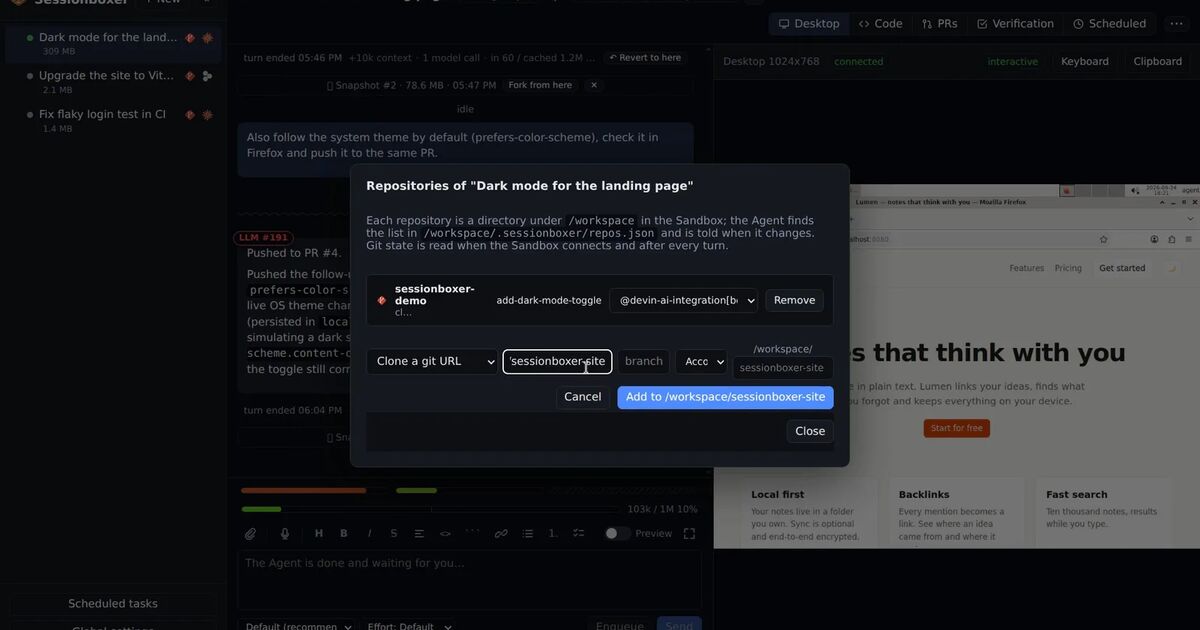
Sessionboxer runs each agent session in a container of its own, on your machine or your server, with your own subscriptions. Two of its logins use GitHub's device flow, and in both you start the login yourself.
In the Connect your agent chapter, Sign in with GitHub Copilot runs copilot login --device-code for you and shows the code for github.com/login/device. In Git accounts, Log in with GitHub (GitHub CLI) runs the GitHub CLI's login: open the link, type the code, approve. The code appears in a dialog you just opened. If you ever see a Sessionboxer code that you did not ask for, do not type it.
You can also skip the device flow for Copilot. The guide says a fine-grained GitHub token with the Copilot Requests permission works in the same field. That does not stop someone from phishing a token of their own out of you. It does mean a "please enter this code" message never matches anything you normally do.
Inside the box, Sessionboxer runs Copilot CLI in its ACP mode (copilot --acp) and hands it the token as COPILOT_GITHUB_TOKEN, keeping the login file in memory only. Our docs do not say whether session syncing or remote control apply in that mode, so do not assume they are off. The account-level checks above apply the same way.
A container also changes what a hijacked session can reach. If an attacker did steer the agent, its commands would run in that session's box, with the repositories and logins you gave that session. Your laptop's SSH keys and other projects are outside it. That is the same reasoning as in keeping secrets away from your coding agent. It does nothing for the private repositories the phished token can read straight from GitHub's API, and nothing for planted memory. Those are fixed on GitHub's side, with the revoke button and the policies above.
What Microsoft adds for Defender customers
For organizations on Microsoft Defender, the post describes two new detections for suspected Copilot CLI device code phishing, one for email and one for Microsoft Teams. They correlate suspicious messages and clicks with later GitHub OAuth token creation and regeneration. The GitHub Enterprise Cloud connector in Defender for Cloud Apps provides the GitHub side. If you do not use Defender, the security log query above is the manual version of the same idea.
If you also run Copilot CLI in containers by hand, running Copilot CLI in Docker covers which environment variables it reads a token from, which is worth knowing before you log in again after a revoke.