
You start an agent on a refactor at five and have to leave at a quarter past. It will need you twice more before it is done: once to answer a question about the API, once to hear "yes, now run the migration". With a local agent, that used to mean waiting at the desk, or moving the task to a cloud agent and leaving your local setup behind.
On October 6, 2026, Cursor announced remote control for local agents. The Cursor iOS app can now see and reply to the agents running on your computer. Claude Code has a feature with the same name, Remote Control, that does something similar. Below is what Cursor shipped, what crosses the network, and when a machine that never sleeps is a better home for the agent.
What Cursor shipped
Setup, per the changelog: download the iOS app and sign in, and the computers on your account appear in it. Tap one and approve the pairing request in the Cursor desktop app. Your local agents then show up as a list, and you can tap one to see what it is doing or send it a message.
Two details are easy to miss. Remote control is on by default for everyone except Enterprise organizations; there, an admin turns it on under Org settings > Security and identity > Remote control. And the agents keep running on your computer, so in Cursor's words "your computer needs to stay on and online." A setting called "Keep this computer awake" stops it from sleeping, but only while it is plugged in with the lid open.
The Cursor for iOS docs describe the handoff in more detail. You run /remote-control in an agent in the Agents Window (Cursor 3.9.8 or later), and the session appears in the app's inbox. According to the docs, "the agent loop runs in Cursor's cloud, and every tool call (terminal commands, file edits, tests, and git) runs on your computer." Your repository, secrets and build caches stay on your machine, and "only tool results and the context the model needs cross to Cursor."
There are conditions. You need a plan with Cloud Agents access, and Remote Control is unavailable if your privacy settings turn off cloud data storage. On Teams and Enterprise plans, the admin switch is under Cursor Dashboard → Cloud Agents → Self-Hosted. The app needs iOS or iPadOS 26 or later, and Android is planned.
How Claude Code does it
Claude Code's Remote Control connects claude.ai/code or the Claude app for iOS and Android to a session on your machine. There are three ways in: claude remote-control starts a server that waits for connections and can show a QR code, claude --remote-control starts an interactive session you can also reach from the phone, and /remote-control hands over a session that is already running. It works on Pro, Max, Team and Enterprise plans. API keys are not supported.
The connection and security section is clear about the path. Your session makes outbound HTTPS requests only and opens no inbound ports. Messages are routed through the Anthropic API, and while Remote Control is connected, the transcript is stored on Anthropic servers, tool activity included. Execution and file access stay on your machine. The mobile docs add that Claude Code reconnects when a sleeping machine wakes up, and recommend a cloud session if the computer will be off.
So both products have the same shape. The phone is a window onto your computer. The work runs on your machine, and the conversation passes through the vendor's servers on the way.
What to decide before you use it
First, whether it should be on at all. If you use Cursor outside an Enterprise organization, it already is. Pairing needs an approval in the desktop app, and Cursor's docs say each session is tied to your account and your machine, and that requests for agents you do not own are rejected. That makes your Cursor login the thing to protect, so turn on a second factor wherever that login offers one.
Second, what the agent may do while you are away. An agent you steer from a phone is still an agent on your laptop, with your home directory, SSH keys and cloud logins in reach. If it asks before each command, you will be approving commands on a small screen between other things. If you turn the prompts off so it can work alone, it works alone on your real files. Claude Code's documentation recommends skipping permission prompts only inside a container or VM; our post on running Claude Code with --dangerously-skip-permissions goes through what that flag turns off. The Remote Control page also notes that to sandbox the sessions claude remote-control starts, you turn on sandboxing in a settings file.
Third, where the agent lives. Both features need the computer on. For a laptop, that means plugged in, lid open and on a network. For "work through the backlog tonight and I will look at breakfast", a machine that is always on is the better host: a desktop under the desk, a home server or a small VPS.
Where Sessionboxer fits
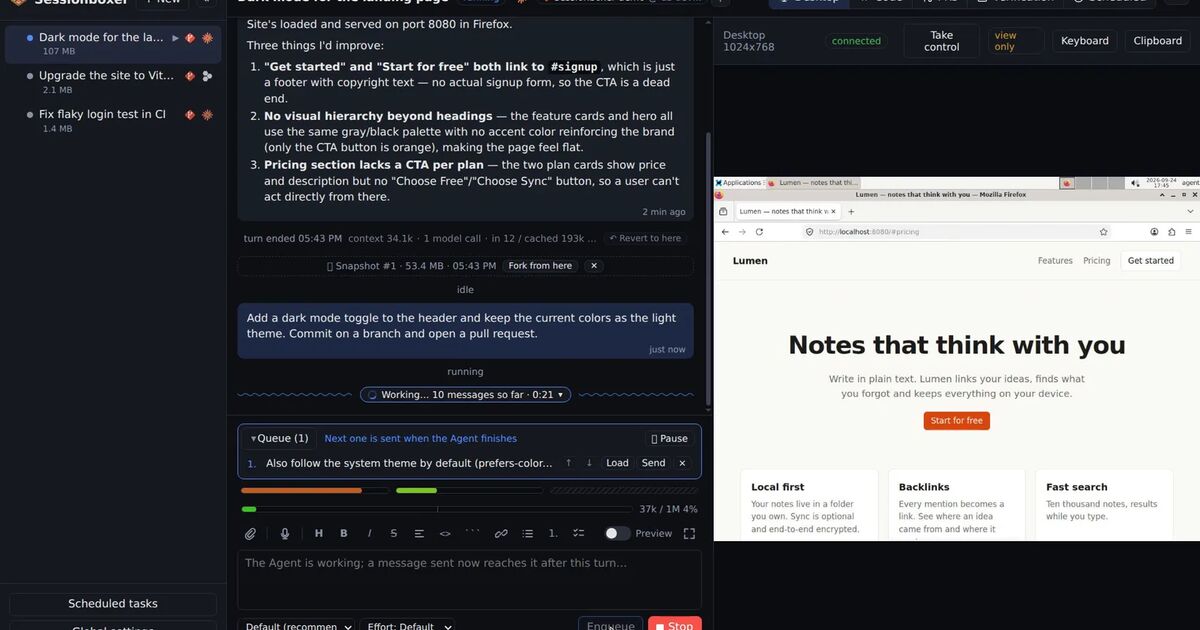
We build Sessionboxer, so this part is about our own product. Sessionboxer is a Control Plane you run on your own machine or server. Each session is an agent, such as Claude Code, Codex or Cursor, in its own Docker container with the repository cloned into it. Inside the box the agent runs without permission prompts, because the container is the boundary. That matters most on a phone: no prompt stops the turn while it waits for you to tap Allow.
The phone gets the same web UI. Below 800 px wide it switches to a phone layout with one pane at a time (Chat, Desktop, Terminal, Code), and you can add it to the home screen. To pair a phone, open Global settings → Devices and remote access → Pair another device. It shows a QR code that works once, for five minutes. Scan it and the phone is logged in as its own device, which you can revoke later from the same list. Over HTTPS, the phone can also get a push notification when a turn ends or a pull request gets new comments. The on the phone chapter of the guide has the details.
How the phone reaches the machine is up to you. The tunnels chapter covers the local network, a Cloudflare quick tunnel, the Sessionboxer tunnel with a stable name, and your own server over SSH. Each tunnel is an outbound connection, so nothing is opened on your router. From the phone you can queue the next prompts while the agent works, or dictate one. Dictation runs on the machine with Sessionboxer and needs no account. A session you stopped to save memory resumes when you send it a queued message.
What Sessionboxer does not do
There is no native app. The phone uses the web UI from the home screen, so there are no lock-screen Live Activities like the ones Cursor's docs describe for up to eight agents.
It also needs a machine that is on. Sessionboxer does not move a session to the cloud when your laptop closes. If the Control Plane runs on a laptop, the same lid rule applies, and the answer is the same: run it on a machine that stays up.
Tunnels pass through a server that is not yours. The Cloudflare quick tunnel terminates TLS at Cloudflare's edge, and the Sessionboxer tunnel terminates it at our tunnel server in Finland; both re-encrypt to your machine. The access token is the only wall in front of the UI. If you want a second login, or no public address at all, the your own address chapter shows how to use a Tailscale network or a named Cloudflare Tunnel with Cloudflare Access in front.
The model calls still go to the agent's provider, the same as on your laptop. Sessionboxer moves the agent into a box; Anthropic or OpenAI still receive the prompts.
A short checklist
- If you use Cursor outside an Enterprise organization, look at the Remote Control section of Cursor's desktop settings and decide whether you want it on.
- Protect the account that pairs the phone, Cursor or Claude, with a second factor where its login offers one.
- Before you walk away from an agent, decide what it may touch. Keep the prompts on, or put it in a container or VM.
- If the work should continue with the laptop closed, run the agent on a machine that stays on. Our post on running Claude Code on a schedule compares where scheduled runs happen, which is the same question at night.