
You give Claude Code a long task, close the laptop to catch a train, and the task stops with it. The fix is to run the agent on a machine that stays on: a rented VPS, an old PC under the desk or a Raspberry Pi with enough memory.
Moving the agent is the easy part. Then you need to know how Claude Code logs in on a machine with no browser, how you get back to the conversation from somewhere else, and what the agent can touch on that server while you are away.
Below are three setups, from the smallest to the most complete. We make Sessionboxer, which is the third, so read that part knowing who wrote it.
First, the login on a machine without a browser
Claude Code normally logs in through a browser. A server has none, so Anthropic gives you a token instead. On your own computer, run:
claude setup-token
The authentication docs say this opens the same browser flow as /login and prints a one-year OAuth token. It does not save it anywhere. You copy it and set it on the server:
export CLAUDE_CODE_OAUTH_TOKEN=your-token
The token is tied to your Claude subscription, so treat it like a password: anyone who reads it can use your plan until it expires. Keep it out of the repository and out of any file the agent might commit. An API key in ANTHROPIC_API_KEY works too, if you pay per token.
Setup 1: SSH and tmux
This is the setup most people start with, and it is fine for a lot of work. Install Claude Code on the server, connect with SSH and start a tmux session so the agent keeps running when you disconnect:
ssh you@server
tmux new -s agent
cd ~/projects/api && claude
Press Ctrl+b then d to detach. Later, from any machine, ssh you@server and tmux attach -t agent brings you back to the same screen, with the agent still working or waiting for you.
It is simple, and it has three limits.
The agent runs as your user on the server. It can read your home directory, your SSH keys and every other project you cloned there. Anthropic's dev container docs say you can pass --dangerously-skip-permissions there because the container confines command execution. A bare tmux session confines nothing, so leave the prompts on.
Several tasks share one machine. Two agents in two tmux windows can edit the same checkout, fight over the same port or install conflicting packages. Our post on running several coding agents in parallel covers the ways around that.
And a terminal on a phone is hard work. An SSH app with tmux works, but reading a long diff on a small screen with no Ctrl key is no fun.
Setup 2: Claude Code Remote Control on the server
Claude Code has its own way to reach a running session from somewhere else. Remote Control connects claude.ai/code or the Claude app for iOS and Android to a Claude Code session on your machine. Start it inside tmux on the server:
tmux new -s rc
cd ~/projects/api && claude remote-control
The command prints a session URL, and the space bar shows a QR code for the phone. You can type from the terminal, the browser and the phone in turn. The connection section says all traffic goes through the Anthropic API, and the transcript is stored on Anthropic servers while Remote Control is connected.
A few conditions from the docs matter on a server. Remote Control needs a Pro, Max, Team or Enterprise plan, and API keys are not supported. On Team and Enterprise, an Owner has to turn it on first. The claude process has to keep running, which tmux takes care of. In a directory you have not trusted yet, the command asks Trust <directory>? [y/N], and it exits with an error when it cannot ask, so run it once by hand before you script it.
This gives you a good phone client for free. What it does not change is where the agent runs. It still runs as your user on the server, with the same reach as in setup 1. The --spawn worktree option gives each new session its own git worktree, which separates the files but not the rest of the machine. We compared this with Cursor's version in steering local agents from your phone.
Setup 3: Sessionboxer on the server
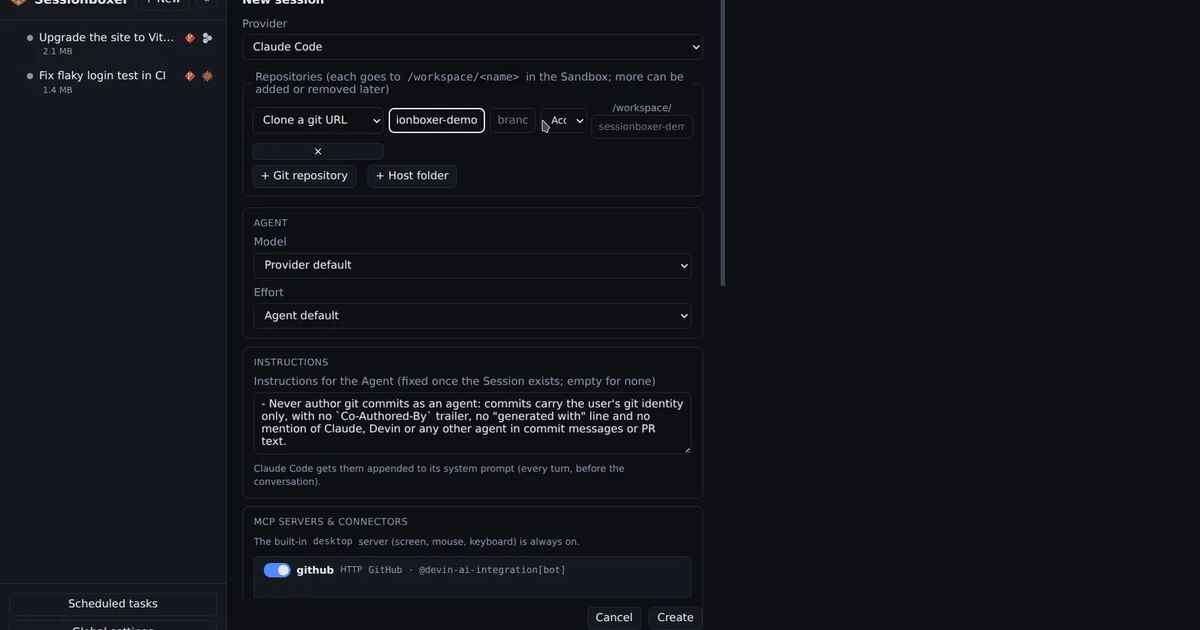
Sessionboxer runs on the server as a Docker Compose stack and puts each session in its own Docker container. The agent runs inside that box with all permissions granted, and you work with it in a browser page: the chat, a Linux desktop the agent can drive, VS Code and terminals. The install chapter calls Docker Compose "the home server, VPS, Raspberry Pi or Coolify case; only Docker is needed":
curl -fsSLO https://raw.githubusercontent.com/talayolabs/sessionboxer/v1.6.0/docker-compose.yml
docker compose up -d
docker compose logs control-plane      # shows the one-time login link
For the login, open Global settings → Providers and click Sign in with Claude Code, or paste the token from claude setup-token. Sessionboxer stores it in its config file, readable only by you, and hands it only to the boxes of sessions that use Claude Code. It runs on your own subscription; there is no Sessionboxer account.
Each session clones its repositories from a git URL into its own box. Two sessions cannot edit each other's files, and the agent in one box does not see your home directory on the server. When you are done for the day, Stop frees the box's CPU and memory and keeps everything in it, so Resume on Monday brings back the conversation and the installed packages.
Reaching it from your laptop and phone
By default the compose file publishes port 4000 on 127.0.0.1 only. Every page, the API, the terminals and the desktop sit behind a login with one access token per server, and each browser that logs in becomes a device you can revoke. You have two ways to reach it from outside.
The first is built in. Global settings → Devices and remote access → Pair another device offers a Cloudflare quick tunnel, a Sessionboxer tunnel with a stable address, or a reverse SSH tunnel to a server you already have. Each one is an outbound connection, so nothing is opened on your router. The tunnels chapter explains what passes through whose servers in each case.
The second is your own address. The your own address chapter describes three: Tailscale with tailscale serve for a private HTTPS address only your devices can reach, a named Cloudflare Tunnel, or Caddy on a VPS with a public address. In each case you set SESSIONBOXER_PUBLIC_URL to the address you type and SESSIONBOXER_TRUST_PROXY=1. On a public VPS, the guide suggests putting the server on a tailnet as well and limiting port 443 to it, since otherwise the access token is the only wall.
On a phone the same page shows one pane at a time, with tabs for Chat, Desktop, Terminal and Code. Over HTTPS it can send a push notification when a turn ends or a pull request gets review comments. The on the phone chapter has the details.
What Sessionboxer does not do here
It does not restrict the box's network. The agent can reach anything the server can reach, so a server inside your company network is a different risk than a VPS on its own.
The Control Plane container gets the Docker socket, which the guide says plainly "is the same as giving it root on the host." It needs that to create the boxes. Run it on a server you would give the agent's boxes anyway, and not on the machine that also runs your production database.
It does not host anything for you. You run the server, keep Docker updated and find disk for the images: each agent's sandbox image is 1.2 to 1.4 GB compressed.
Which one to pick
| SSH + tmux | Remote Control in tmux | Sessionboxer | |
|---|---|---|---|
| What you install | Claude Code | Claude Code | Docker, then the compose file |
| Login on the server | CLAUDE_CODE_OAUTH_TOKEN or API key |
A Pro, Max, Team or Enterprise login; no API keys | Sign in from the browser, or paste the token |
| Where the agent runs | As your user on the server | As your user on the server | In one container per session |
| From the phone | An SSH app | The Claude app or claude.ai/code | The same web page, phone layout |
| Traffic from the phone goes through | Your SSH connection | Anthropic's servers | Your tunnel or address of choice |
| Several tasks at once | Separate checkouts, by hand | Worktrees with --spawn worktree |
Separate boxes |
If you run one task at a time on a server that holds nothing else, setup 1 or 2 is enough. Add Remote Control when you want a real phone client and your plan includes it. When several agents work at once, or you want them to run without prompts on a machine that also holds your keys and other projects, give each one a box. The comparison of an open-source, self-hosted Devin alternative goes further into what such a box needs.