
You put the coding agent in a container so it cannot touch your laptop. Then you ask it to run the integration tests, and the first line of the test setup is docker compose up -d postgres. Inside an ordinary container there is no Docker daemon, so the command fails. The agent then tries something else. In our own testing, an agent without Docker installed Redmine directly on its box instead of running it in a container.
So you want Docker inside the agent's box. There are three common ways to get it, and two of them give the agent your machine back.
Why Docker does not just work in a container
A Docker daemon needs to create namespaces, mount filesystems and manage cgroups. A normal container is not allowed to do those things. Adding one capability such as CAP_NET_ADMIN fixes the network bridge and nothing else; the daemon also needs CAP_SYS_ADMIN and relaxed seccomp and AppArmor profiles. In stock Docker, the switch that grants all of that at once is --privileged.
That leaves three options people usually reach for:
| Option | How it works | What the agent can reach |
|---|---|---|
| Mount the host socket | -v /var/run/docker.sock:/var/run/docker.sock |
Your host's Docker daemon, which runs as root |
| Privileged Docker-in-Docker | --privileged and a dockerd inside |
Almost everything the host can do |
| A runtime built for it | Sysbox, or a microVM | Its own daemon, inside its own boundary |
Option 1: mount the Docker socket
This is the one-liner in many tutorials. The agent's docker command talks to the daemon on your host, and everything appears to work.
Docker's security docs explain the problem. The daemon "requires root privileges unless you opt-in to Rootless mode", and "only trusted users should be allowed to control your Docker daemon." The example they give is a container started with your host's / mounted at /host, which "can alter your host filesystem without any restriction." Any process that can write to the socket can start that container. A prompt injection in a README the agent reads could ask for exactly that.
There are practical problems too. The containers the agent starts run next to the agent's own container, outside it, and they stay after the session ends. Bind mounts break, because a path like /workspace/app exists in the agent's container and not on your host.
Docker's own Docker Sandboxes docs say the same thing in one sentence: "Mounting your host Docker socket into a container would give the agent full access to your environment."
Option 2: privileged Docker-in-Docker
Here the agent's container runs its own dockerd, so its containers stay inside. It is self-contained and works on any host. The cost is the --privileged flag. The docker run reference lists what it turns on: all Linux capabilities, no default seccomp or AppArmor profile, access to all host devices, and a writable /sys and cgroup mounts. Then it warns: "A container with --privileged is not a securely sandboxed process. Containers in this mode can get a root shell on the host and take control over the system."
If you already decided the agent should not be trusted with your laptop, this is the same as not having a container at all. It is fine for an agent and a repository you trust. For an agent that runs with its permission prompts off, which is the usual reason to put it in a box, it undoes the reason.
Option 3: a runtime that runs Docker unprivileged
Sysbox is an open-source container runtime, a replacement for runc, originally from Nestybox, which Docker acquired in 2022. It gives every container its own Linux user namespace, so root inside maps to an unprivileged user on the host, and it virtualizes parts of /proc and /sys. With that, an unmodified dockerd runs inside the container without --privileged and without the host socket. Its README lists this use case directly: Docker-in-Docker "without insecure privileged containers or host Docker socket mounts."
The same README states two limits. Sysbox does not use VMs, and it "does not provide the level of isolation that VM-based runtimes do": the box still shares the host's kernel. And it is Linux only. The distro table has packages for Ubuntu and Debian and needs a fairly recent kernel (5.12 or later in general, 6.8 on Ubuntu 24.04).
The VM route is the other answer. Docker Sandboxes run each agent in a microVM with its own kernel and its own Docker Engine, so docker build and docker compose up run inside the VM and, in Docker's words, "the agent has no path to your host Docker daemon." That is a stronger boundary than a shared kernel, with the trade-offs of a VM.
How Sessionboxer does it
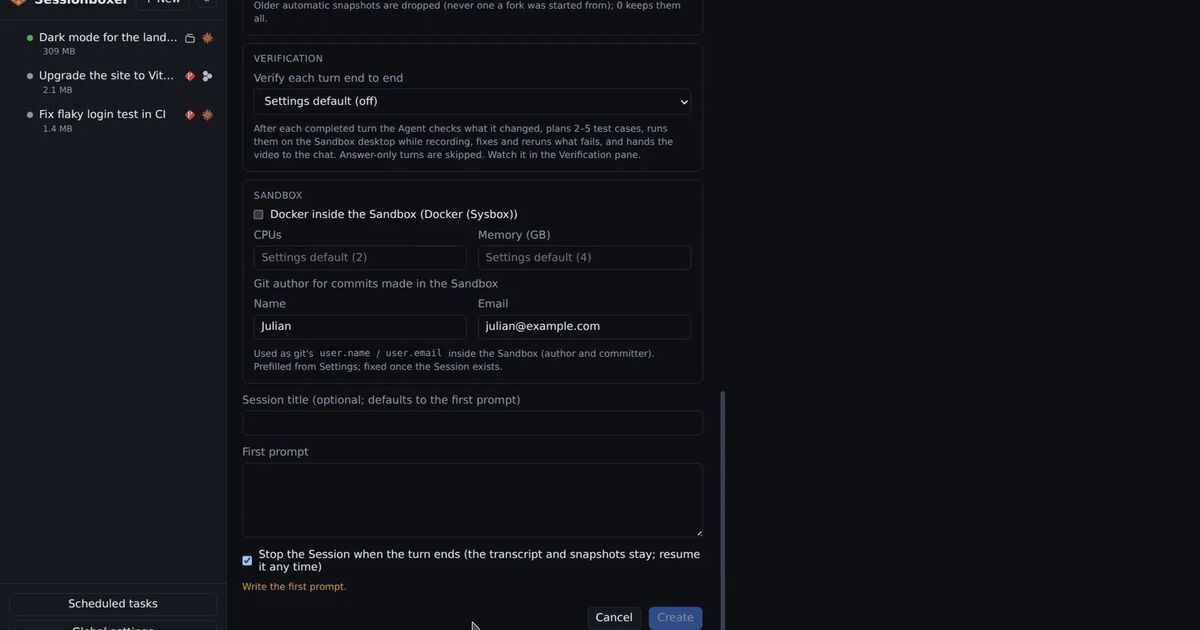
We build Sessionboxer, so this part is about our own product. Each session already runs in its own Docker container with the code cloned into it. Docker inside the box is off by default. Tick Docker inside the Sandbox in the Sandbox section when you create a session, turn it on for all new sessions in Global settings, or pass --docker on the command line:
sessionboxer new --git https://github.com/you/app --docker -p "Start the Postgres from docker-compose.yml and run the integration tests"
Sessionboxer never mounts the host socket. It picks between the other two options automatically:
- If
docker infoon your machine lists thesysbox-runcruntime, the box runs under Sysbox and stays an unprivileged container. The checkbox reads "Docker (Sysbox)". - If Sysbox is missing, the box runs privileged. Sessionboxer still allows it, but it puts a ⚠ on the Global settings button, explains the risk next to the checkbox, shows "Docker (privileged)" in the session header in the warning color, and marks the session in the sidebar. The CLI prints a warning after
new.
The check runs every time the settings load, so installing Sysbox needs no restart of Sessionboxer. The mode is fixed when the session is created, so existing privileged sessions stay privileged. Create new ones after installing.
Inside a Docker-enabled box the agent gets docker, docker compose and docker build, in its own shell and in the Terminal pane. Images, containers and volumes survive Stop and Resume and are deleted with the session. The box keeps its CPU and memory limits, and the containers the agent starts publish no ports on your host. Each session has its own daemon, so two sessions can both run a Postgres on port 5432 without a clash.
The agent is told how to tell the two cases apart. If docker info fails with "Cannot connect to the Docker daemon", it is told not to start dockerd or add capabilities, and to ask you to enable Docker for a new session instead.
This pairs well with the agent checking its own work: with the stack running in the box, it can open the app in the box's browser and test the change before it tells you it is done. We wrote about that loop in letting the coding agent test its own work.
What Sessionboxer does not do
On macOS there is no Sysbox, because Sysbox is Linux only. Docker inside the box always uses the privileged mode there. The box still lives inside the Linux VM that OrbStack or Docker Desktop runs, not directly on your Mac, but a privileged box can get root in that VM, which also runs your other containers.
Sysbox is a container runtime, not a VM. The kernel is shared with your host. If you want a separate kernel per agent, a microVM product or a full VM gives you that and Sessionboxer's Linux boxes do not.
The inner Docker uses its own network addresses, 192.168.240.0/20 by default. If your office or VPN uses an address in that block, the box cannot reach it and you see "No route to host". You can pick another block in Global settings; the Docker inside sessions chapter of the guide explains how, and the troubleshooting chapter shows how to check which network is in the way.
A short checklist
If you run agents in containers today and they need Docker:
- Search your scripts and compose files for
docker.sock. If an agent's container mounts it, the agent has root on that host. - Search for
--privilegedandprivileged: true. Keep them only for agents and repositories you trust. - On Linux, install Sysbox from its releases page and run the agent's container with
--runtime=sysbox-runc. The installer restarts Docker, so plan for that. - Keep secrets out of the box either way. A private Docker daemon does not stop the agent from reading a token you copied in. Our post on running Claude Code with permission prompts off covers what else to set up around the box.