
You let Copilot's agent run commands in VS Code because clicking Allow forty times an hour gets old. Then it runs npm install on a branch you have not read, and a dependency's install script runs as you. It can open ~/.ssh, read your shell history and connect anywhere. In most setups, the only thing between that script and your files is the approval prompt you stopped reading.
VS Code 1.141, released on October 7, 2026, adds a sandbox for the commands Copilot's agent runs. It is off by default, and once on, its defaults leave more open than the name suggests. Below: what it confines, how to tighten it, and when you still want the agent in a separate machine.
What shipped on October 7
The 1.141 release notes describe sandboxing in the Copilot agent host, the process that runs the new Copilot harness. In Microsoft's words, it "limits how supported agent operations access files and network resources, and helps to reduce the impact of model mistakes, prompt injection, untrusted dependencies, and locally launched tool servers."
You turn it on with one setting, or per session from the Permissions menu with the Sandboxing for terminal toggle:
{
  "chat.agent.sandbox.enabled": "on"
}
The restrictions apply to terminal commands and their child processes. MCP servers and language servers that the agent host launches are sandboxed too, by default. For a remote session, the rules are enforced on the remote host, and file paths refer to that machine.
The platform requirements are short. The sandboxing docs list nothing for macOS. Linux and WSL2 need bubblewrap and socat. Windows needs the September 8, 2026 security update (KB5124008 on Windows 11 24H2 and 25H2), and Windows support is marked Experimental. If a dependency is missing, the docs say the agent host does not quietly run the command unsandboxed; it tells you what to install.
Organizations can require it. The release notes show a managed setting, in preview, with "enabled": true and "allowBypass": false under sandbox.
The defaults, read closely
This table comes from the settings section of the docs. Every name after the first starts with chat.agent.sandbox. too:
| Setting | Default | What the default means |
|---|---|---|
chat.agent.sandbox.enabled |
off |
Nothing is sandboxed until you turn it on |
network.allowNetwork |
true |
Outbound connections are allowed |
network.allowLocalNetwork |
false |
Hosts on your local network are blocked |
fileSystem.allowDevToolAccess |
true |
Read access to tool folders, developer-tool config and caches, including registry tokens |
credentials.authenticategit |
true |
Sandboxed processes can use your Git credentials over HTTPS |
credentials.authenticategh |
true |
Sandboxed processes can use your GitHub account through gh |
allowUnsandboxedCommands |
true |
The agent can ask to run a command outside the sandbox |
The working directory is always readable and writable. Everything else on disk depends on these settings and on the path lists you add.
The network and credential rows matter most. The network is open: the docs say plainly that turning on sandboxing "does not block outbound network access by default." And the sandbox passes your Git and GitHub credentials in. A script that cannot read ~/.ssh can still push to any repository your account can reach, or send your workspace to a server on the internet.
VS Code's trust and safety page adds that "the sandbox does not protect credentials that you explicitly inject." The sandboxing docs are also clear about the boundary itself: "Sandboxing is not a virtual machine or user-account boundary, and it does not replace endpoint security. A sandboxed process still runs on the execution host under your account." They also say it "does not replace the isolation provided by cloud sessions or Dev Containers."
One more detail is easy to miss. If you approve a session-wide bypass when a command fails, every later terminal command in that session runs without the restrictions until you turn sandboxing back on.
A tighter setup for one repository
For a project where the agent mainly installs packages and runs tests, a stricter starting point looks like this:
{
  "chat.agent.sandbox.enabled": "on",
  "chat.agent.sandbox.network.allowedDomains": ["registry.npmjs.org", "api.github.com"],
  "chat.agent.sandbox.credentials.authenticategh": false,
  "chat.agent.sandbox.allowUnsandboxedCommands": false,
  "chat.agent.sandbox.fileSystem.userConfiguredPaths": {
    "deniedPaths": ["/home/you/.aws", "/home/you/secrets"]
  }
}
Adjust the domains and paths to your project. In the docs, deniedPaths wins over the read-only and read-write lists. With allowUnsandboxedCommands set to false, a blocked command fails instead of prompting you, so a tired click cannot open the door. If you also set allowDevToolAccess to false, the docs suggest adding back narrower paths for the tools the build needs.
Then check what you got. Start a new agent host session and type /sandbox policy. It writes a sandbox-policy.md report with the host, the sandbox implementation and the effective file and network rules, without starting a model turn. A quick test of our own: ask the agent to cat a file outside the workspace that you denied, and to curl a domain that is not on your list. Both should fail.
Where a separate machine still helps
The sandbox is a set of rules applied to processes on your own machine, under your own user. A container or VM is a different disk, and files that were never copied into it are not there to steal. Claude Code's docs draw the same line: they recommend skipping permission prompts only inside a container or VM, as we covered in running Claude Code with permission prompts off.
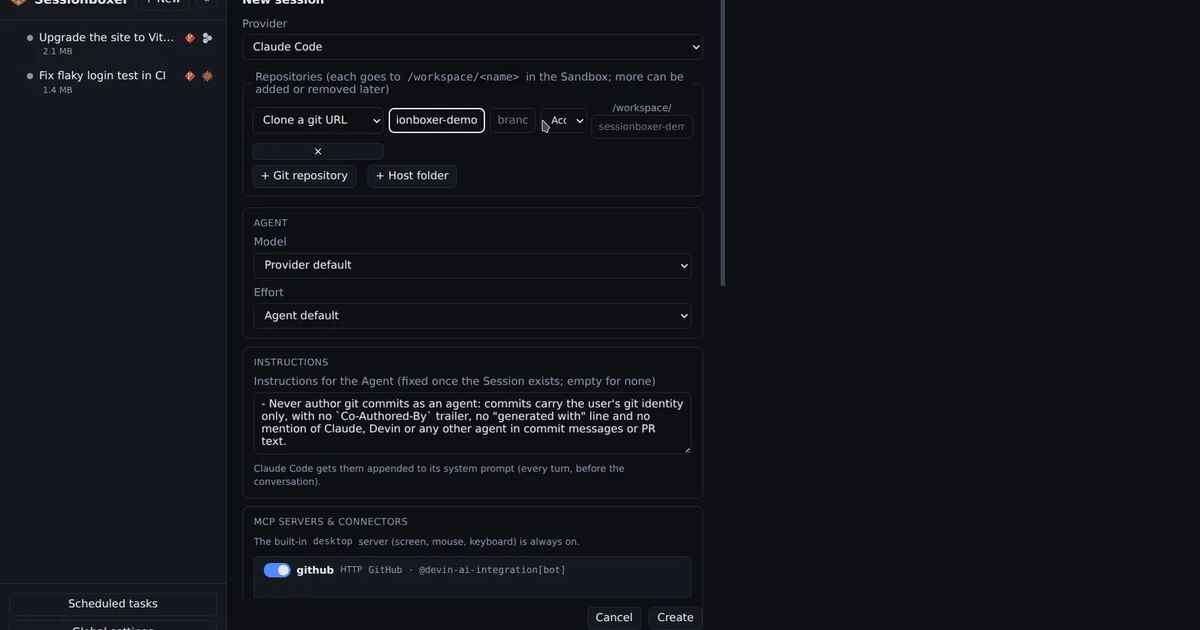
We build Sessionboxer, so here is where it fits and where it does not. Each session runs in its own Docker container with the code cloned into it, and nothing from the host is mounted in. Inside, the agent runs with all permissions granted, because the container is the boundary. GitHub Copilot is one of the agents it runs, as the Copilot CLI: Sign in with GitHub Copilot in Sessionboxer's settings runs copilot login --device-code for you, and it needs a Copilot plan with the CLI enabled. The connect your agent chapter has the details. The login token goes only to the containers of sessions that use that agent and is never stored in snapshots.
What Sessionboxer does not do
It has no outbound network filter. Traffic from the box to the internet is not restricted, and nothing like allowedDomains exists in its settings. If you need that, put a firewall or proxy you control in front of Docker.
The box can also reach your machine. MCP servers you register with a localhost URL are reached on the host, and host.docker.internal works from inside. VS Code's default of blocking the local network is stricter on that point.
The VS Code in Sessionboxer's Code pane is openvscode-server with VS Code's own AI features turned off, so there is one agent per session, the one in the chat. So the 1.141 sandbox is a setting for VS Code on your own machine, not one you would use inside the box.
And anything you hand the box, the agent can read. A token in an MCP server's environment or a .env file you copied in is inside the boundary, not outside it. Our post on keeping secrets away from a coding agent goes through what to leave out.
Which one to use
If you use Copilot's agent in VS Code on your laptop, turn the sandbox on today, set the network and credential settings for the project, and run /sandbox policy to see the result.
If you want the agent to work for an hour with no prompts at all, or to run a repository you do not trust, give it a machine of its own: a Dev Container, a cloud session or a box on your own hardware. Windows support is still Experimental, managed enforcement is in Preview, and the sandboxing docs themselves name cloud sessions and Dev Containers as the stronger isolation.