
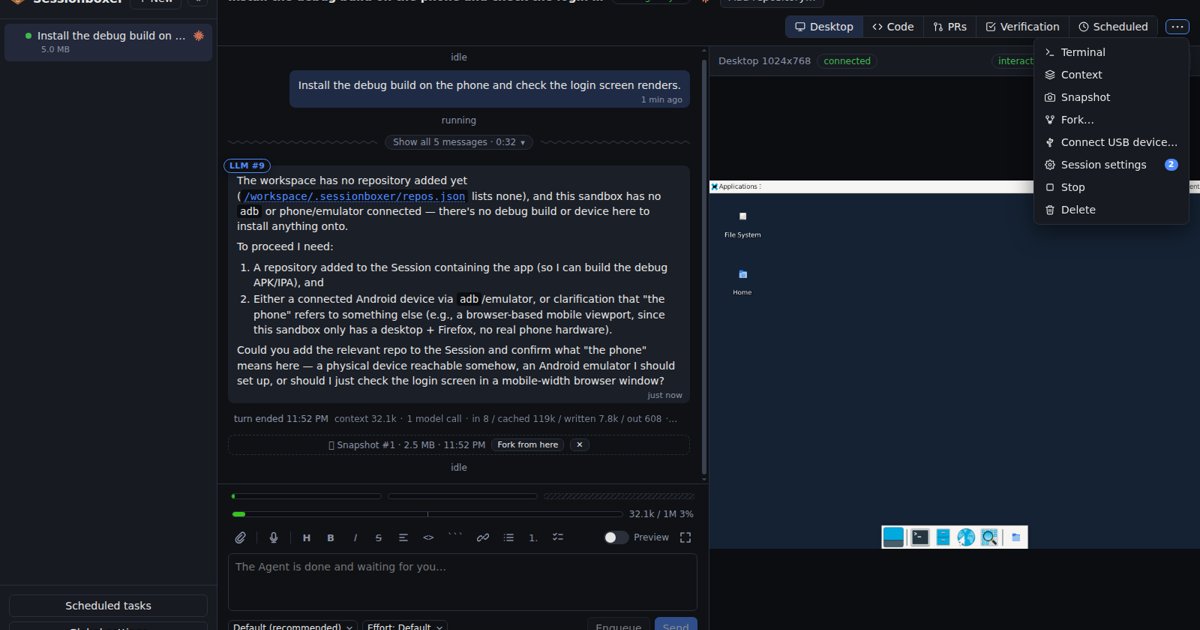
Your coding agent runs in a container, as it should. It builds the debug APK, and you ask it to install the build on the phone plugged into your computer and check that the login screen renders. The agent installs adb, runs adb devices, and gets an empty list. Then it asks you what "the phone" means.
The phone is on your desk, but the container has no way to see it. Below: why that is, the three Docker settings people usually try, what each one hands the agent, the Wi-Fi route that needs no USB at all, and how Sessionboxer gives one phone to one session.
Why the container cannot see the phone
On Linux, every USB device is a file under /dev/bus/usb/, named by bus and device number, for example /dev/bus/usb/001/007. adb, and anything else built on libusb, opens that file to talk to the device. A container has its own /dev, and Docker puts nothing from the host's USB bus in it unless you ask.
The device number is the second problem. The kernel gives the phone a new number every time it reconnects: when you unplug it, when it resets, when you change its USB mode, and when you answer Android's "Allow USB debugging?" prompt. That prompt is part of the normal first connection. Android shows it to make you accept the computer's RSA key before any adb command runs, as the adb documentation explains. So the path you saw a minute ago is often wrong by the time adb uses it.
The three usual Docker fixes
| Option | How | What goes wrong |
|---|---|---|
| Pass the one device | --device /dev/bus/usb/001/007 |
The path is fixed when the container is created. The next reconnect leaves a dead node. |
| Mount the whole bus | -v /dev/bus/usb:/dev/bus/usb plus a cgroup rule |
Every USB device on the machine is in the container. |
| Privileged | --privileged |
Every host device, and much more. |
The docker run reference describes the first limit itself. Docker assigns devices "at creation time", which "poses a problem when you need to add a new device to running container." Its suggested fix is a permissive --device-cgroup-rule (USB devices are character devices with major number 189, so c 189:* rmw) plus a udev script on the host that runs docker exec ... mknod whenever a device appears. That works, but it is a script you write and maintain, and the container needs the right to create device nodes.
Mounting the whole bus avoids the script, because the host keeps the directory up to date. It also gives the agent your keyboard, your webcam, your security key and anything else you plug in. For an agent that runs without permission prompts, that is a lot to hand over to install an APK.
--privileged is the setting the reference warns about: it is "not a securely sandboxed process" and such a container can "get a root shell on the host." We covered the same trade-off for Docker itself in Docker in Docker for coding agents.
The route without USB: adb over Wi-Fi
If the phone runs Android 11 or later, you may not need USB at all. The Wi-Fi section of the adb docs describes wireless debugging. You turn it on in the phone's developer options, choose Pair using pairing code, and run this where adb lives:
adb pair 192.168.1.23:37099    # IP, port and code shown on the phone
adb connect 192.168.1.23:41235 # the address on the Wireless debugging screen
adb devices
The phone and the computer have to be on the same Wi-Fi network, and the container has to be able to reach the phone's address. The pairing is remembered until you choose Forget on the phone or revoke the adb authorisations.
This is the easy answer when Docker runs inside a VM that does not pass USB devices through on its own, as with Docker Desktop on macOS and Windows, OrbStack and Colima. Docker Desktop does document a USB/IP setup, but it is manual: you run a USB/IP server, start a privileged container with --pid=host, attach the device from there and keep that container running.
On Windows: usbipd-win and WSL2
If your Docker Engine runs inside WSL2, Microsoft's guide to connecting USB devices uses usbipd-win. You share the device once from an administrator terminal, then attach it to WSL:
usbipd list
usbipd bind --busid 4-4
usbipd attach --wsl --busid 4-4
After that the phone exists on the Linux side, and the Docker options above apply. Microsoft's guide notes that while a device is attached to WSL, Windows cannot use it, so the adb.exe you may have installed on Windows loses the phone until you detach it.
How Sessionboxer does it
We build Sessionboxer, so this part is about our own product. Each session runs in its own Docker container with a desktop the agent can see and drive. Since version 1.4.0, a session can also hold one USB device from the machine that runs Sessionboxer.
Plug the phone in, open the session's menu and pick Connect USB device…. The dialog lists the machine's USB devices (hubs are left out) and which session holds each one. Choose the phone, and its node appears in that box and in no other. Sessionboxer tells the agent the path and that this is the only USB device it can reach. The sidebar shows a USB icon next to sessions that hold a device.
When the phone re-enumerates, the box follows. Sessionboxer checks the kernel's device list every two seconds, matches the phone by vendor, product and serial number, replaces the node in the box when the number changes, and tells the agent the new path. Stop and Resume keep the device. Deleting the session releases it.
Nothing that talks to USB is preinstalled. The agent installs what it needs, usually with sudo apt-get install -y adb, then runs adb devices. The adb key lives in the box, so you answer the phone's authorisation prompt once per session. A prompt like this one is enough:
Build the debug APK, install it on the phone with adb and check the login screen renders.
Put scrcpy on the desktop so I can see the phone.
scrcpy mirrors the phone's screen in a window. On the box's desktop you watch that window live in the Desktop pane, and you can take control. If you ask the agent for a screen recording, it records that desktop, scrcpy window included, to an .mp4 you play in the chat. Our post on letting the coding agent test its own work covers the same loop for web apps.
Two phones work as two sessions, one each. Connecting a phone to a second session takes it away from the first, which is told why. Two adb servers on one phone would fight over its USB interface anyway.
What it does not do
- It does not work on Docker Desktop (macOS or Windows), OrbStack or Colima. The dialog says so. Use adb over Wi-Fi from the box there.
- On Windows it works only with Docker Engine inside WSL2 and usbipd-win installed. Connect runs
usbipd attach --wslfor you and re-attaches after resets. Sharing a device for the first time needs an administrator, so Sessionboxer asks Windows for the elevation prompt. Our design notes say this path follows usbipd-win's documentation but had not yet been run on a real Windows machine when it shipped, so tell us if it breaks. - Sessions created before 1.4.0 have no USB bus in their box. Delete and recreate them, or fork from a snapshot.
- The box cannot create nodes for other devices, but the agent has passwordless sudo inside it and can open the device it was given. Treat the phone as the agent's for that session: use a test phone, not the one with your banking app.
The USB devices chapter of the guide has the details, including the Windows steps.
A short checklist
- If
adb devicesis empty in a container, the container has no node for the phone. Checkls /dev/bus/usbinside it. - Prefer one device over the whole bus, and never
--privilegedfor this. - Expect the device number to change after the "Allow USB debugging" prompt. Anything pinned to a path has to follow it.
- On Docker Desktop, OrbStack or Colima, use wireless debugging with
adb pairandadb connect. - Give the agent a test phone.