
Your product is a Windows program, or it has a Windows build that breaks more often than the others. You give the bug to a coding agent. If the agent runs in a Linux container, it reads the code, writes a fix, and then tells you it cannot run the build or open the .exe to check. If it runs on your own Windows laptop, it can do both, and it can also reach everything else on that laptop.
This post is about that gap. There are three places an agent can run when the work is on Windows, and each one hands over something different.
Option one: the agent on your own Windows machine
Claude Code and Codex both run natively on Windows.
Claude Code's setup page lists Windows 10 1809 or later and Windows Server 2019 or later. You install it from PowerShell or CMD without administrator rights. Without Git for Windows it runs commands through its PowerShell tool; with Git for Windows it uses Git Bash for its Bash tool. The same page has a small table that matters here: Claude Code's sandboxing is "Not supported" on native Windows, and supported in WSL 2. On native Windows, the permission prompts are what stand between the agent and your files.
Codex has its own Windows sandbox with three implementations:
mxcuses Microsoft's process isolation and needs no administrator setup. It needs Windows 11 24H2 (build 26100.9278) or 25H2 (build 26200.9278).elevatedneeds administrator-approved setup. It creates lower-privilege sandbox users and adds firewall rules.unelevatedruns commands with a restricted token derived from your user. OpenAI's docs say it has weaker network isolation thanelevatedand does not support denied read paths.
OpenAI's advice is to use the native sandbox by default and choose WSL when you need Linux tooling.
This option needs the least setup. The cost is that the agent works on your real machine, with your browser profile, your SSH keys and your other projects one directory away. A sandbox narrows that. It does not give the agent a second machine where it can install an SDK, change a registry key or reboot.
Option two: WSL 2
WSL 2 runs a Linux distribution on Windows, and Claude Code's sandboxing works there. For a web service or a CLI that ships on Linux, that is often the right place.
It does not solve the original problem, though. Inside WSL the agent works in Linux. WSL can run Windows programs such as notepad.exe from its shell, but Microsoft's docs say they run as the active Windows user. That puts the agent back on your own Windows desktop, which is option one.
Option three: a Windows VM the agent owns
A virtual machine gives the agent a whole Windows of its own. It can install Visual Studio Build Tools, run your installer, break the machine and leave your laptop alone. The cost is setup: a Windows image, a disk, a way to see the screen, and a way to get the agent and its login inside.
The usual open-source route on Linux is dockur/windows, which runs Windows under QEMU inside a Docker container. Its README shows the whole thing in one command:
docker run -it --rm --name windows -e "VERSION=11" -p 8006:8006 \
  --device=/dev/kvm --device=/dev/net/tun --cap-add NET_ADMIN \
  -v "${PWD:-.}/windows:/storage" --stop-timeout 120 docker.io/dockurr/windows
It downloads Microsoft's installation media, installs Windows 11 Pro by default, and shows the screen in a browser on port 8006, with RDP on port 3389. The requirements are a Linux host with KVM and at least 32 GB of free disk. The README says that "Docker Desktop on Linux, macOS, and Windows 10 does not currently provide KVM access to containers and is therefore not supported." It also says the project does not distribute Windows, and that the keys in its code are generic installation keys, not activation licences.
After that you have a Windows desktop. The agent is still not in it. You would install Node, Git and the agent, start an SSH server, copy your login in, decide where the repository lives, and give the agent some way to take screenshots and click. Then you would do it all again for the next task, or share one VM between tasks and hope they do not collide.
How Sessionboxer does it
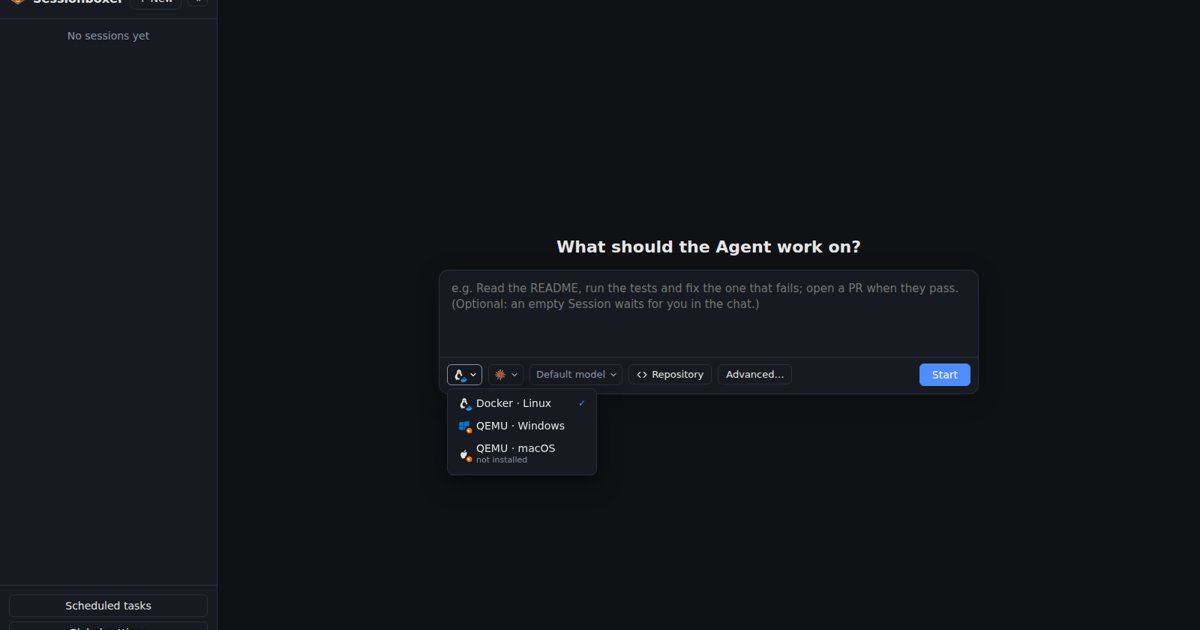
We build Sessionboxer, so this part is about our own product. By default each session runs in its own Docker container with a Linux desktop. The first dropdown under the prompt also offers QEMU · Windows and QEMU · macOS.
For Windows, you install a base disk once from Global settings → Environment → Windows VMs → Install. You pick the edition (Windows 11 Pro by default; 11 LTSC and Enterprise, 10 Pro and LTSC, Server 2022 and 2025 are the others), the memory and CPUs per VM, and the disk size. Sessionboxer runs an unattended installation based on dockur/windows. It downloads Microsoft's media, about 6 GB, creates an agent account, and installs OpenSSH Server, Node.js 22, Git, uv and the agents. The guide puts this at thirty to fifty minutes.
After that, each Windows session boots its own copy-on-write overlay of the base disk in seconds. A session's disk costs only what it writes.
The agent runs inside the VM. Sessionboxer starts Claude Code, Codex, Cursor or another supported agent over SSH in the guest. Repositories are cloned into C:\workspace, and git asks Sessionboxer for credentials when it needs them, so the token is not stored in the VM. Your provider login reaches the VM only for the seconds an agent start takes. The Terminal pane is a PowerShell in the VM. The MCP servers you turn on for the session start in Windows too, so one that reads the registry or drives a Windows program sees Windows.
The screen comes over RDP to the session's desktop. You watch it in the Desktop pane and can take control. The agent's screenshots, clicks and typing act on the Windows desktop, and so do its screen recordings. A prompt like this is enough:
Build the Release configuration, run the installer, start the app from the Start menu
and check that the Settings dialog opens. Record a short video of it.
The prompt says Start menu for a reason. The agent's shell runs in the SSH service session, so a program it starts from that shell does not appear on the desktop. Sessionboxer tells the agent to open programs from the Start menu instead. The same loop for web apps is in our post on letting the coding agent test its own work.
QEMU · macOS works the same way with a Mac, its screen over VNC, and Safari on the desktop. Installing the macOS base needs you at the screen for a while, because Apple ships no unattended installer. It also needs a CPU with AVX2. Apple's licence allows macOS VMs on Apple hardware only, so on other machines that choice is yours, as the guide says.
What it does not do
- It needs a Linux host with
/dev/kvm: bare metal, a VM with nested virtualisation, or WSL2 with KVM enabled. Docker Desktop on macOS cannot run it. On Windows it works only with nested virtualisation exposed to WSL2. The dropdown says why the option is unavailable when it is. - Windows runs unactivated, with a watermark and some personalisation locked, until you activate it with your own licence inside the guest. Sessionboxer ships no licence.
- Windows and macOS sessions have no snapshots, forks or rebuilds yet, no Docker inside the session and no VS Code in the Code pane. You edit through the agent, the Terminal or the desktop.
ghis not installed in the Windows VM. Plaingit pushandgit pullwork.- fx has no Windows build, so it is disabled for Windows sessions.
- Each VM takes its memory on top of the Linux box's, 4 GB and 2 CPUs by default.
- The agent's account in the VM is an administrator. That is the point of giving it a machine, so keep anything you care about out of it.
If your code only needs Linux, a plain container is still the better box. Our post on Docker in Docker for coding agents covers the most common thing a Linux session asks for next.
Which one to pick
- The code ships on Linux: run the agent in a Linux container or in WSL 2.
- The code ships on Windows, your Windows 11 build has MXC, and you want the least setup: run Codex natively with the
mxcsandbox. Run Claude Code natively with its permission prompts on, since its sandbox is not available there. - The agent has to install toolchains, run an installer and click through the result, and you do not want that on your laptop: give it a Windows VM, on a Linux machine with KVM.
- Whichever you choose, ask for a recording. A video of the dialog opening is easier to check than a sentence saying it did.