
You joined a project last week, or you are about to review a change that touches five services. You ask the coding agent how the pieces fit together, and it answers with eight paragraphs. Every sentence is probably right, and you still cannot hold the picture in your head. So you ask for a diagram. The agent writes thirty lines of Mermaid, and your terminal prints them as thirty lines of text.
This post is about the two steps after that: getting the diagram in front of your eyes, and making sure it says what the code does. It works the same with Claude Code, Codex or any other agent that can write a Markdown file. We build Sessionboxer, which shows up near the end.
Why Mermaid is the format to ask for
Mermaid turns a short text definition into a diagram. A flowchart, a sequence diagram or an entity relationship diagram is a few lines of plain text, which suits an agent: it writes text well, and it can read the source back later to change it.
Text also suits you. The diagram lives in the repository next to the code, it shows up in a diff when it changes, and you review it like any other file. GitHub renders Mermaid in Markdown files, issues, discussions, pull requests and wikis, inside a fenced code block marked mermaid. A diagram in docs/architecture.md is readable by everyone who opens the repository on GitHub, with no image file to keep up to date.
One warning from Mermaid's own syntax reference: "Unknown words and misspellings will break a diagram, while parameters silently fail." A node called end can break a flowchart unless it is quoted. Agents get this right most of the time, and the rest of the time you see an error instead of a picture, so you want a viewer that shows the error.
A prompt that gets a useful diagram
Ask for a file, ask for one question per diagram, and ask where each box comes from. Something like this:
Write docs/architecture.md. It should have two Mermaid diagrams:
1. A flowchart of the services and the stores they read and write.
2. A sequence diagram of what happens when a user checks out.
Under each diagram, list every box and arrow with the file and
function it comes from. Leave out anything you cannot point to.
The file matters because you can open it in other tools, commit it and ask for changes later. Two diagrams work better than one big one: a flowchart answers "what talks to what", a sequence diagram answers "in which order". The list of sources under each diagram is what makes it checkable. More on that below.
The result looks like this, in the file:
flowchart LR
  web[Web app] --> api[API]
  api --> orders[(orders DB)]
  api --> queue[[payment queue]]
  queue --> worker[Payment worker]
  worker --> stripe{{Stripe}}
Where to look at it
Once the file exists, you have several ways to see it drawn. They differ in where the diagram goes.
| Viewer | What you do | Where the diagram goes |
|---|---|---|
| GitHub | Push the branch and open the file or the pull request | GitHub, with the rest of the repository |
| VS Code 1.121 or later | Open the Markdown preview | Nowhere; drawn on your machine |
| mermaid-cli | mmdc -i diagram.mmd -o diagram.svg |
A local SVG, PNG or PDF |
| Mermaid Live Editor | Paste the source in the browser | The editor's web page, and any link you share |
VS Code 1.121, released on May 20, 2026, added built-in Mermaid rendering to the Markdown preview, to notebooks and to chat, with panning, zooming and a way to copy the Mermaid source. If the agent runs on your machine and you have VS Code open, this is the shortest path.
mermaid-cli is the one to use when you need an image file, for slides or for a wiki that does not render Mermaid. npm install -g @mermaid-js/mermaid-cli installs mmdc. It can also turn a whole Markdown file into one where each diagram is replaced by an SVG, and there is a Docker image if you do not want it on your machine. Its README lists a Linux sandbox issue among its known issues, which is worth reading before you run it inside a container. You can also ask the agent to run it.
The Mermaid Live Editor is good for learning the syntax. Be careful with real architecture there. The editor keeps the diagram in the page's URL, so a shared link carries your service names to whoever gets it and to any tool the link passes through. Anthropic treats this as an upload: the Claude Code changelog for 2.1.261 says auto mode now treats "a link that packs content into a public diagram renderer's URL as an upload to that site", and no longer approves it unless you asked for it. For private code, use a viewer that draws locally.
Check the diagram against the code
A diagram looks authoritative, which is the problem. An agent that read half the repository can draw a clean box for a service that was deleted last year, or miss the cron job that writes to the same table. The picture will not tell you.
This is why the prompt above asks for sources. Read the list under the diagram and open two or three of the files it names. If an arrow has no file next to it, ask the agent where it came from. "I assumed" is a common answer, and a useful one to get before you share the diagram with your team.
Two more checks are cheap. Ask the agent to grep for every external host the code calls and compare that list with the boxes on the diagram. And when the diagram is part of a pull request, review it with the rest of the diff; the post on reviewing a coding agent's changes before you commit has a routine for that.
Keep the diagram small. If it needs more than fifteen boxes, it is answering more than one question. Ask for a second diagram instead.
Diagrams in Sessionboxer
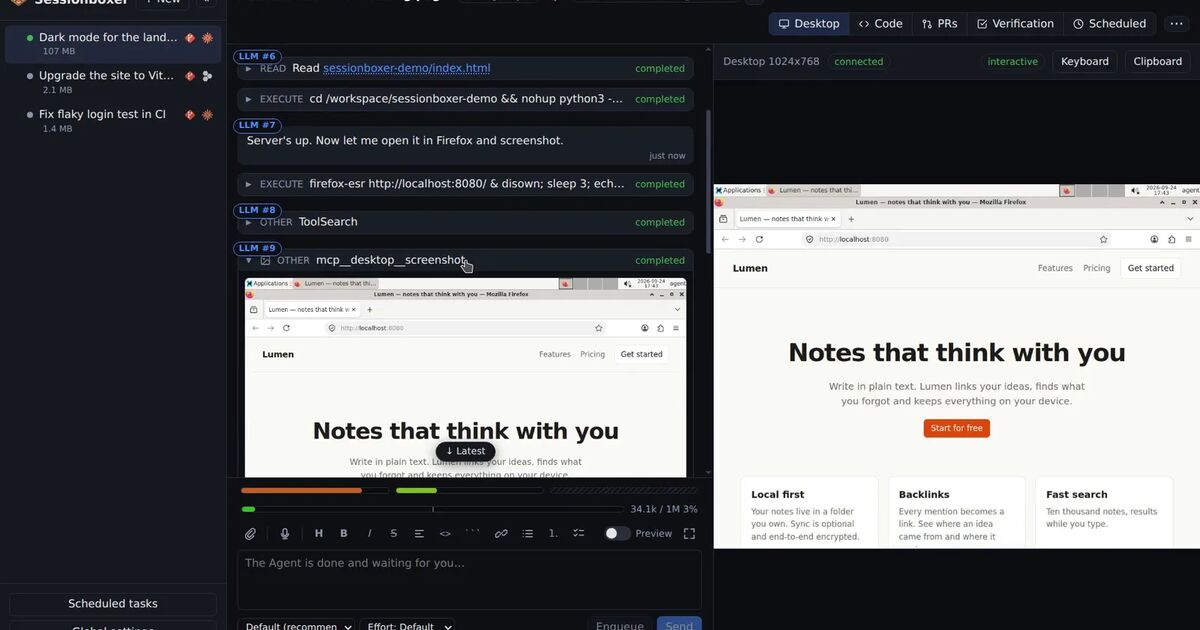
Sessionboxer runs each agent session in its own container on your machine, and you talk to the agent in a browser. The chat renders Markdown, and a fenced mermaid block in a reply is drawn as a diagram. When the agent names a .md or .mmd file in its reply, such as docs/architecture.md, the file appears rendered in the chat as a document, and relative links and images inside it resolve against the files in the box. If the syntax is off, you see the error and the source instead of a blank space. The Videos, documents and diagrams chapter has the details, and the same documents feature covers screen recordings and PDFs.
Diagrams follow the color theme you pick in Sessionboxer, light or dark, like the rest of the window. The VS Code in the box has Markdown Preview Mermaid Support built in, so Ctrl+Shift+V on the same file draws it there too, next to the code it describes. The VS Code chapter explains how that editor runs.
If you want to try a different layout without losing the first one, fork the session and ask the fork to redraw it. Both versions stay, each with its own conversation.
What Sessionboxer does not do: it draws the diagram in your browser and does not write an image file. For an SVG or PNG, ask the agent to run mmdc in the box. The file is read from the box, so the session must be running to show it. And nothing in Sessionboxer checks that the diagram is true. That part is still the list of sources and the few minutes you spend opening files.
For people who use an agent mainly to learn a codebase, the student section of which AI coding agent should you use suggests the same loop: ask the agent to explain the architecture, then to draw it, then to run the app and show you the request flow on the desktop.