
A user writes in: the checkout button does nothing in Safari. You hand the bug to your coding agent. It opens the page in Chromium, clicks the button, sees the order go through, and tells you it cannot reproduce the problem. It never ran Safari, because Safari only runs on Apple's systems and your agent runs in a Linux container.
Since Safari 27, there is a cleaner way to close that gap. Safari now includes its own MCP server, so Claude Code, Codex or any other MCP client can open pages in a real Safari window and look at what happens there. This post covers how to turn it on, what the agent gets from it, and the one thing it cannot change: it needs a Mac.
What the Safari MCP server is
WebKit introduced the server on July 1 in Safari Technology Preview 247, and it shipped in Safari 27.0 on September 17, according to the Safari 27.0 release post. The same post says Safari 27 comes with macOS 27, and that you can also install it on macOS 26 Tahoe and macOS 15 Sequoia.
The server is part of safaridriver, the WebDriver binary Safari has shipped for years. Your agent starts it as a local command with one extra flag, --mcp, and talks to it over stdio. Apple's documentation lists 17 tools. With them the agent can:
- open, list, switch and close tabs, and load a URL
- read the page as Markdown, HTML or JSON, and take a screenshot
- list network requests and read one in full, with headers, body and timing
- read console messages
- click, type, scroll, hover and press keys, in a sequence
- run JavaScript in the page
- set the viewport size, emulate a media type such as print, and answer dialogs
That is most of what you would do by hand in Web Inspector while chasing a Safari bug. WebKit's post lists the uses it has in mind: compatibility checks, accessibility checks such as missing labels and poor contrast, performance numbers from navigation timing, and the state of forms and checkout flows.
On privacy, Apple's post says the server runs entirely on your machine and makes no network calls of its own. It has no access to your AutoFill data or your other browsing. What it captures goes to the agent you run. Where it goes after that depends on your agent and model, and the pages your agent reads will go to the model provider like any other tool output.
Turn it on
You need Safari 27 or later on a Mac. Then two settings in Safari:
- Safari > Settings > Advanced: check "Show features for web developers".
- Safari > Settings > Developer: check "Allow remote automation and external agents".
Add the server to your agent. For Claude Code:
claude mcp add safari-mcp -- "/usr/bin/safaridriver" --mcp
For Codex:
codex mcp add safari-mcp -- "/usr/bin/safaridriver" --mcp
For other agents, Apple gives this block for an mcp.json or similar file:
{
  "mcpServers": {
    "safari-mcp": {
      "command": "/usr/bin/safaridriver",
      "args": ["--mcp"]
    }
  }
}
Then ask for something plain, such as "Open my site at localhost:3000 in Safari and tell me if it loaded correctly." The docs say the agent opens a new window and Safari shows a banner under the toolbar saying an agent controls it. One detail from the same page: if the first thing you ask for is a list of tabs before any page is open in the controlled window, the server may return an error. Start with a URL.
What it does not replace
It is Safari on macOS. Apple's pages do not describe driving Safari on an iPhone or in the iOS Simulator, so a bug that only shows up on iOS still needs a device or the Simulator.
Playwright's WebKit is not a substitute either. The Playwright docs say its WebKit is built from WebKit's main branch with patches, that Playwright "doesn't work with the branded version of Safari", and that for the closest-to-Safari results you should run WebKit on a Mac. Playwright's WebKit on Linux still catches many engine differences, just not all of the ones your users see.
And it widens what the agent can do on the machine where it runs. If you rely on Claude Code's sandbox on your Mac, note that it covers shell commands only. The docs say local MCP servers run outside it, with your full access. An agent connected to the Safari MCP server can load any URL and run JavaScript in the pages it opens. Apple's own advice on the WebKit post is short: only use agents you trust with your browser.
Where the agent should run
Since you need macOS, there are three realistic places.
The first is your own Mac, with the setup above. It is the fastest way to try it. The agent works next to your files, your keys and your logins, so this is the right choice when you would let it work on that machine anyway.
The second is a macOS VM on your Mac. Tools built on Apple's Virtualization framework, such as Tart, run macOS guests on Apple Silicon. Inside the VM the agent sees only what you put there. Apple's macOS Sequoia licence allows up to two additional copies of macOS in virtual machines on each Apple-branded computer you own or control, for software development, testing, macOS Server or personal non-commercial use. In practice that means two macOS VMs per Mac.
The third is a macOS VM on a Linux server, which is what Sessionboxer's QEMU · macOS environment does. It comes with a licence question you have to answer yourself, covered below.
We wrote the same comparison for Windows in letting a coding agent build and test inside a Windows VM. The trade-offs are close.
Doing it in a Sessionboxer macOS session
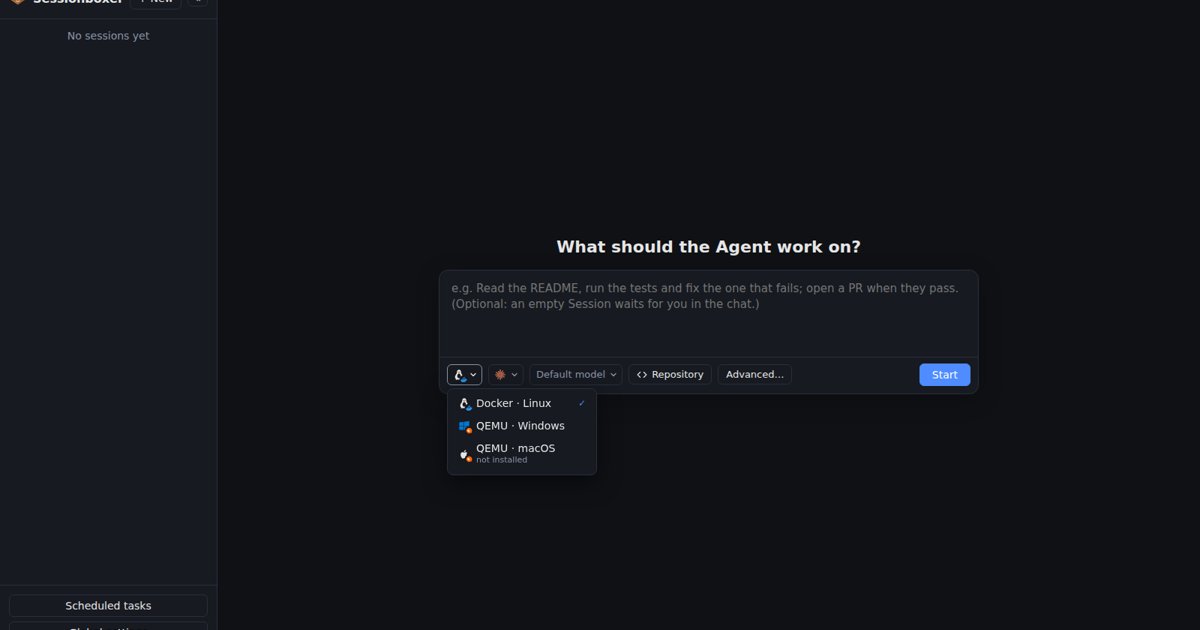
In Sessionboxer you pick the environment under the prompt: Docker · Linux by default, or QEMU · Windows or QEMU · macOS, as described on Windows and macOS sessions. In a macOS session, Claude Code, Codex, Cursor, Devin or one of the other supported agents runs inside the Mac. Its repositories are cloned into /Users/agent/workspace, the Terminal pane is a zsh in the Mac, and the Desktop pane shows the Mac's screen.
The stdio MCP servers you turn on for the session start inside the Mac too, so localhost is the Mac's. Register the server once under Global settings → MCP & connectors → MCP servers with Import JSON… and paste Apple's block, then switch it on for macOS sessions. The MCP servers page explains the per session switch. The agent can start your dev server in the VM and point Safari at it.
Two steps happen in the Mac's own screen. Open the Desktop pane, click Take control, check Safari > About Safari, and if it is older than 27, update it from Software Update. Then tick the two settings in Safari. They stay on the session's disk.
We have not yet run the Safari MCP server inside a QEMU · macOS session ourselves, so treat this as a setup to try, not one we have verified. Without it, the agent in a macOS session can still open Safari on the desktop and work it with the built-in screen, mouse and keyboard tools from a real desktop. That is slower than reading the DOM directly, but it works on any Safari version.
The limits, from the Windows and macOS sessions chapter of the guide:
- The host must be Linux with KVM and a CPU with AVX2: bare metal, a VM with nested virtualisation, or WSL2 with KVM. Docker Desktop on macOS cannot run it.
- You install the base disk once, from Apple's Recovery, and you sit at the screen for part of it: Disk Utility, the installer, Setup Assistant. Sequoia is the default release.
- macOS sessions have no snapshots or forks, no VS Code pane, no Docker inside the sandbox and no clipboard between the box and the guest. Homebrew is not installed.
- Each VM takes its own RAM, 4 GB by default, on top of the Linux box's, plus about 1.5 GB for QEMU.
The licence needs a decision from you. Apple's licence allows macOS VMs on Apple-branded hardware. The environment is based on dockur/macos, which runs macOS on any Linux host with KVM. Sessionboxer ships no Apple software; the Recovery image and the installer come from Apple's servers. Running it on hardware that is not a Mac is your decision under Apple's terms.
A prompt to start with
Whichever place you choose, a first prompt that gives the agent something to compare works well:
Start the dev server. Open /checkout in Safari, fill the form with test data
and press Pay. Check the console and the network requests, and compare with
what the same steps do in Chromium. Tell me what differs before you change code.
If you also want the agent to film the check after every turn, the post on letting the coding agent test its own work covers Auto QA, which records the desktop of whatever environment the session runs in, the Mac included.